CAM Simulator
| This page is incomplete; it was marked as unfinished on the wiki. |
 CAM Simulator
- Menu location
-
- Workbenches
- Default shortcut
-
kbd:[P M]
- Introduced in version
-
-
- See also
Description
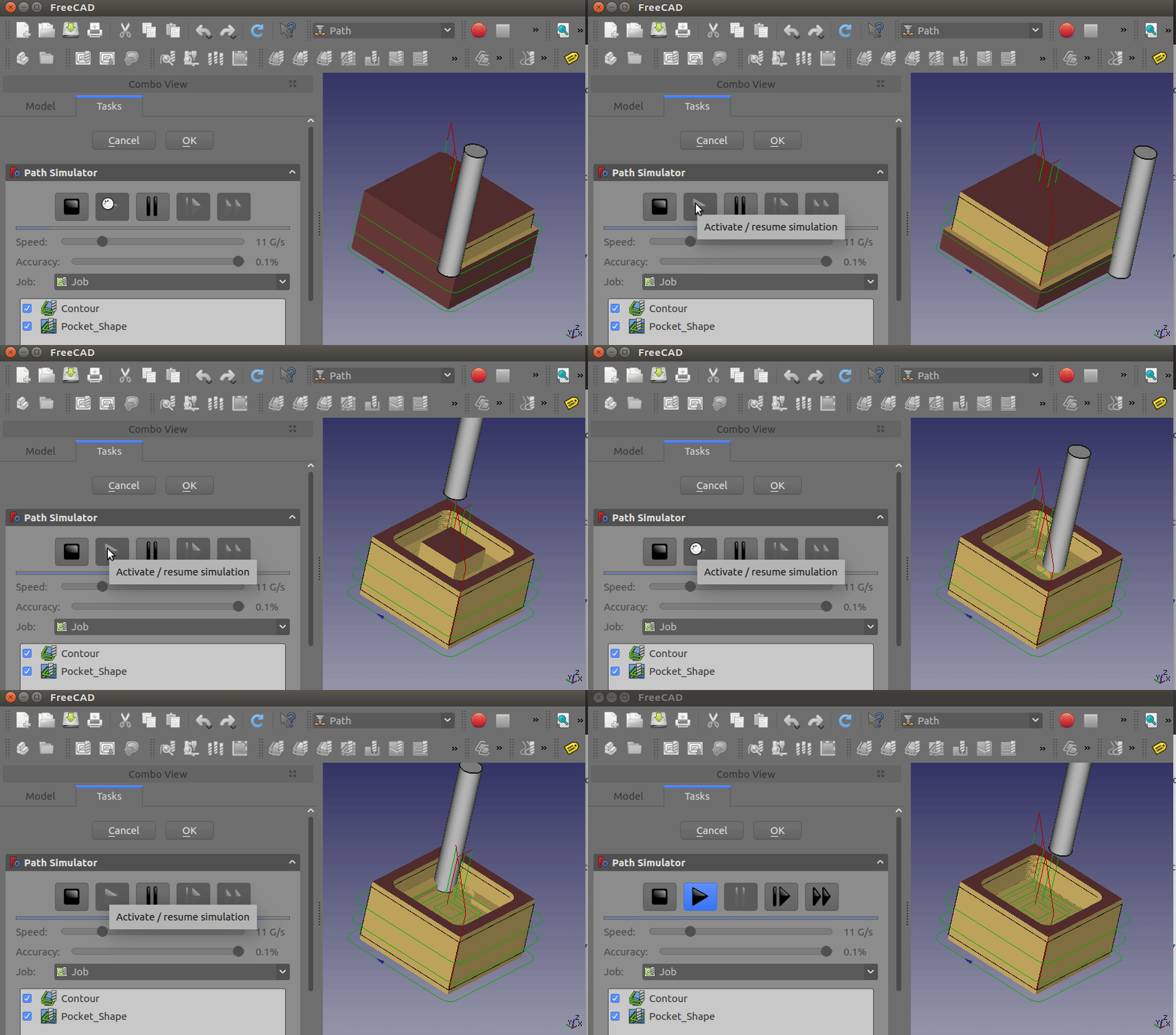
The CAM Simulator command allows Simulation of the CAM Job by sweeping 3D Models of the Tools used in each Operation, along the G-Code paths, subtracting material from the Stock, where the stock and tool overlap, providing visualization of the Job. This allows detection and isolation of errors prior to running the Job on a mill.
Usage
-
There are several ways to invoke the command:
-
Press the
Legacy CAM Simulator button. -
Select the option from the menu.
-
Use the keyboard shortcut: P then M.
-
-
De-select any Operations that are not to be simulated
-
Tune the Speed and Accuracy settings.
-
Select the Job for simulation from the drop menu.
-
Use the Path Simulator toolbar to invoke different actions:
-
Press the
 (Play) button to play or playback an animation of the operations.
 -
Press the
 (Fast Forward) button to increase the speed substantially (in order to quickly review complicated paths).
 -
Press the
 (Pause) button to pause animation for troubleshooting purposes
 -
Press the
 (Single-Step) button for slowing down the animation, this functionality helps troubleshooting and resolving specific cuts and/or movements.
 -
Press the
 (Stop) button to stop the animation.
-
-
Press the Cancel button will remove the stock created for the simulation. If you press OK this object will be kept in your Job.
Properties
-
Playback Speed: The speed of the simulation playback, in G-code lines/second.
-
Accuracy: The accuracy of the simulation expressed as a percentage indicating the simulations deviation from the Job. For interactive simulation, reducing accuracy to 0.3 works much faster.
-
Job: The Job used as the basis of the simulation.
-
Operation List: The list of Operations selected for inclusion in the simulation.