CAM Simulator
| This page is incomplete; it was marked as unfinished on the wiki. |
 CAM Simulator
- Menu location
-
- Toolbar
-
Tool Commands → Simulators → Legacy CAM Simulator
- Workbenches
- Default shortcut
-
P M
- See also
Description
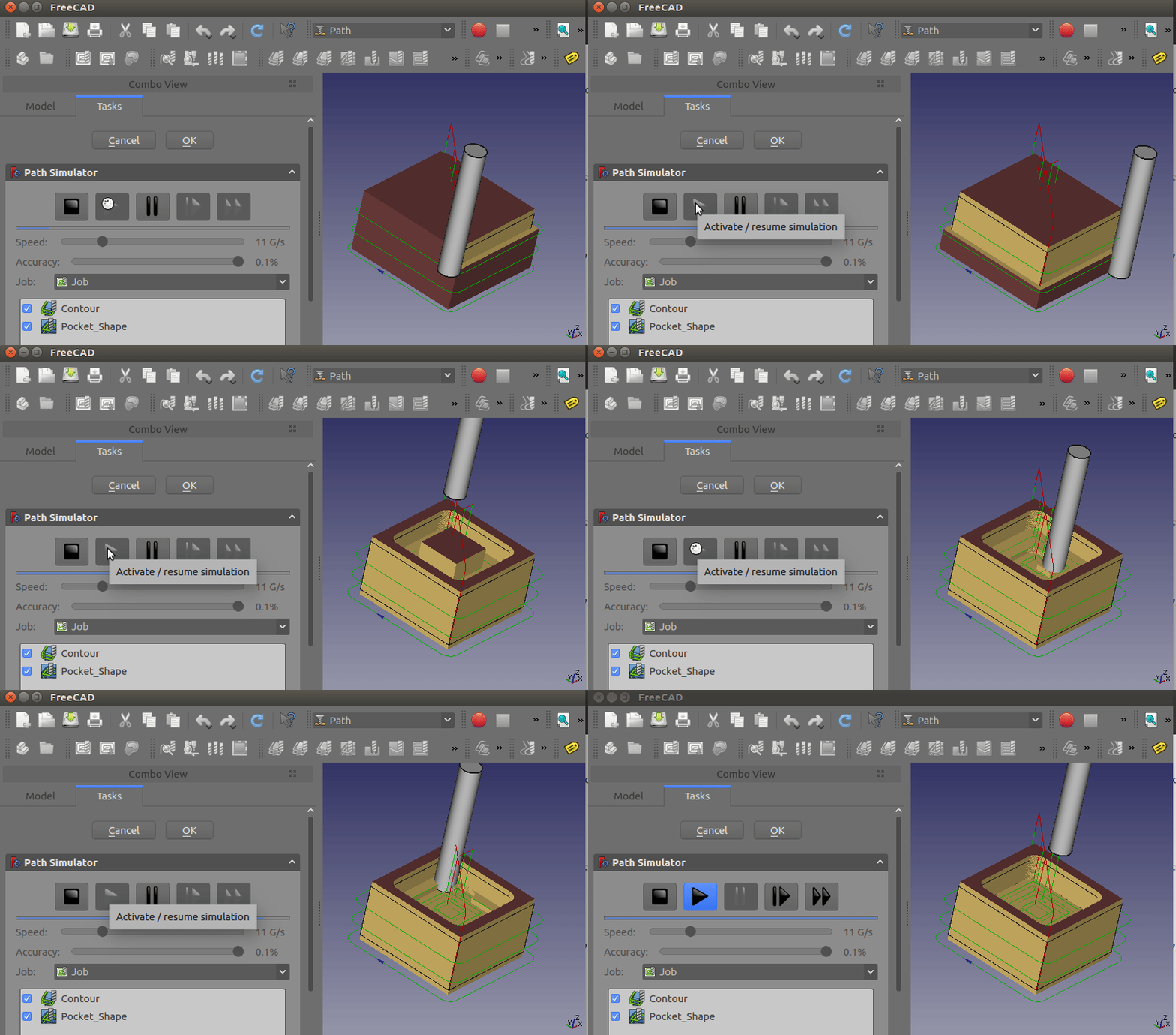
The CAM Simulator command simulates the Job by sweeping the 3D shape of the Tool Bit of each Operation along the Toolpath and subtracting the swept volume from the Stock (voxel simulation), so errors can be found before running the Job on the machine. Its tooltip reads: Simulates G-code on stock.
26.3 and later: the Simulators toolbar button shows the CAM Simulator first; set the boolean parameter BaseApp/Preferences/Mod/CAM/DefaultSimulatorLegacy to true in the Parameter editor to make the legacy simulator the default (there is no checkbox for this in the Preferences).
Usage
-
There are several ways to invoke the command:
-
Press the
Legacy CAM Simulator button. -
Select the option from the menu.
-
Use the keyboard shortcut: P then M.
-
-
Select the Job from the Job drop-down (the Job selected in the Tree view is preselected).
-
Uncheck any Operations that should not be simulated.
-
Adjust Speed (1-50 G-code lines per second) and Accuracy.
-
Use the buttons at the top of the task panel:
-
Press the
 (Play) button to activate or resume the simulation.
 -
Press the
 (Pause) button to pause the simulation for troubleshooting purposes.
 -
Press the
 (Step) button to single step the simulation; this functionality helps troubleshooting and resolving specific cuts and/or movements.
 -
Press the
 (Fast Forward) button to run the simulation until it ends without an animation (in order to quickly review complicated Toolpaths).
 -
Press the
 (Stop) button to stop the running simulation.
-
-
Press Cancel to remove the simulation objects (CutTool, CutMaterial) from the document, or OK to keep the CutMaterial mesh in the document.
Task panel
-
Speed: simulation playback speed in G-code lines per second (1-50).
-
Accuracy: slider from 1 to 10; the label shows the voxel size as a percentage of the largest Stock dimension (1.0% at the left, 0.1% at the right). Lower accuracy (larger voxels) simulates much faster.
-
Job: the Job to simulate.
-
Operations list: Active Operations to include.
The panel notes: Volumetric simulation, inaccuracies are inherent.
Notes
-
The Tool Bit’s actual shape from the Tool Controller is used for material removal (any Tool Shape).
-
Canned drilling cycles G73, G81, G82 and G83 are expanded; G2/G3 arcs are subdivided.
-
Rotary axis words are ignored, so 4th-axis Toolpaths are not simulated. Use CAMotics or another external simulator instead.
-
introduced in 26.3 The voxel simulation shows the Toolpath of an Operation at the position of its Work Plane. The voxel simulation removes material along Z only and shows the Tool Bit vertical. The voxel simulation does not represent a cut in a Work Plane that is not parallel to the table.
-
introduced in 26.3 The boolean simulation works in the frame of the Work Plane of the Operation. The boolean simulation shows the Tool Bit along the Tool Axis, which is the local +Z of the Work Plane. The boolean simulation moves the swept solid to the position of the Work Plane, then cuts the swept solid from the Stock.