CAM Drilling
 CAM Drilling
- Menu location
-
- Workbenches
- Default shortcut
-
None
- Introduced in version
-
-
- See also
Description
The CAM Drilling command generates a drilling Operation in the Job. The command tooltip reads "Creates a Drilling toolpath from the features of a base object".
introduced in 26.3: The operation has a Strategy property with the values Drilling and Tapping. The former experimental CAM Tapping operation was consolidated into Drilling; select Strategy Tapping with a Tool Controller that uses a tap-shaped Tool Bit to generate G84/G74 tapping cycles.
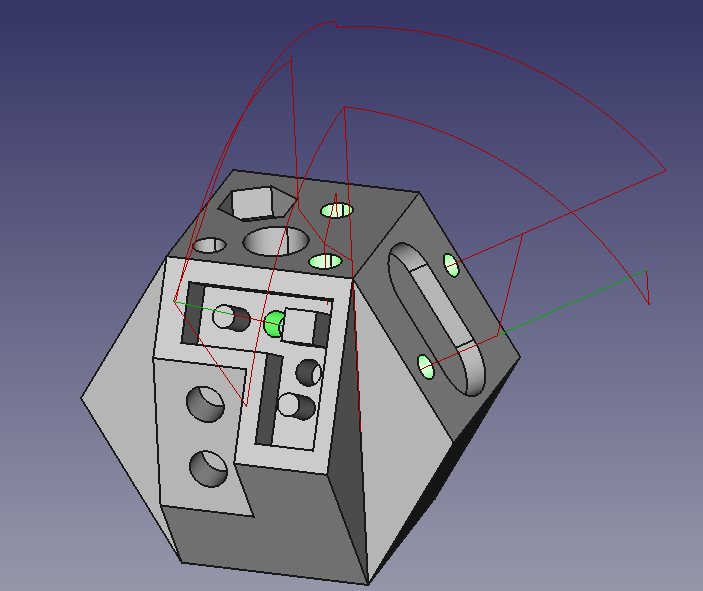
Above: CAM Drilling operation sample (screenshot predates 26.3; the current task panel shows the Strategy combo box and the hole table with X/Y/Blind columns)
Usage
-
There are several ways to invoke the command:
-
Press the
Drilling button in the Drilling Operations group of the New Operations toolbar. -
Select the option from the menu.
-
-
26.3 and later: Holes can be selected manually. Select cylindrical wall faces, circular bottom faces, circular or arc edges, or vertexes and press Add in the Base Geometry section. Auto-select fills the list with every drillable hole of the Job Models, or only of the Models selected in the 3D view. Partial arcs and cylinder faces with more than three edges are accepted.
-
It is best to ensure a suitable drill is already included in the Job Tools before starting. This improves initial hole selection.
-
Accepted Base Geometry: vertexes (diameter 0), circular edges, cylindrical or conical faces, and flat circular faces. For other shapes the centre of mass is used and the diameter may be inaccurate.
-
-
In the Operation section:
-
Choose the Strategy (
DrillingorTapping). -
Optionally enable and adjust the following:
-
Keep tool down (G99 retraction between holes).
-
Peck and set the Depth.
-
Chip break (only enabled when Peck is checked).
-
Feed retract (G85: retract from the hole at the given feedrate instead of a rapid move).
-
Dwell and set the Time in seconds.
-
Extend depth (
None,Drill tip,2x drill tip).
-
-
Peck, Dwell and Feed retract are mutually exclusive; the panel disables the others when one is enabled.
-
-
In the Base Geometry section confirm that the list matches the holes that are intended for processing, and add, enable, or disable holes as necessary. introduced in 26.3: The section shows a table with the columns #, Feature, Diameter, X, Y and Blind. A Sorting combo box selects
Automatic(holes ordered by the built-in travelling-salesman solver) orManual(drag rows or edit the # column to set the order). Select All and a Filter field act on the checkboxes that enable or disable individual holes. -
In the Heights section check, and if required adjust, Clearance, Retract (Safe Height), Start (Start Depth) and Final (Final Depth). The same section holds the Linking settings Collision Avoidance Strategy and Collision Clearance (introduced in 26.3).
-
In the Tool Controller section select a Tool controller and a Coolant mode.
-
Press the OK button to generate the drilling Toolpath.
Notes
-
When using edges for Base Geometry, always select the bottom edge of the hole.
-
Always verify the Tool Bit chosen is the correct diameter for the hole(s) selected.
-
Generated cycles:
-
Peck disabled generates G81 cycles.
-
Peck enabled generates G83 cycles, or G73 when Chip break is also enabled.
-
Dwell enabled generates G82 cycles with the dwell time as P.
-
Feed retract generates G85 cycles.
-
Peck, Dwell and Feed retract cannot be combined.
-
Strategy
Tappinggenerates G84 (right-hand) or G74 (left-hand, Tool Bit Spindle DirectionReverse) cycles with F set to the tap pitch and S to the Tool Controller spindle speed.
-
-
introduced in 26.3: Keep Tool Down false emits G98 (retract to the Z before the cycle); true emits G99 (retract only to Start Depth between holes). Every cycle command carries
RetractModeandoperationannotations used by post-processors and the CAM simulator. Between holes the Linking settings decide whether the tool can travel at Safe Height or must return to Clearance Height. -
Machines without canned cycles: enable Expand drill-cycles in the post-processing options to expand G81/G82/G83/G73 into plain G0/G1 moves. G84/G74 tapping cycles are not expanded.
-
Strategy
Tappingrequires a Tool Bit with a non-zero Pitch (tap shape, for example the shipped M8x1.25_Tap or 375-16_Tap) and a Tool Controller with a non-zero spindle speed; otherwise an error is reported and no Toolpath is generated. Peck, Chip break and Feed retract are hidden for this strategy; Dwell, Keep tool down and Extend depth apply to both strategies. -
The former CAM Tapping command (1.1 and earlier, experimental) is superseded by Strategy
Tapping. Tapping operations in existing files continue to work but new ones cannot be created.
Properties
Note: Not all of these Properties are available in the Task Window Editor. Some are only accessible in the Data tab of the Property View panel for this Operation.
Note: It is suggested that you do not edit the Placement property of path operations. Rather, move or rotate the CAM Job model as needed.
-
Placement: Overall placement[position and rotation] of the object - with respect to the origin (or origin of parent object container)
-
Angle: Angle in degrees applied to rotation of the object around Axis property value
-
Axis: Axis (one or multiple) around which to rotate the object, set in sub-properties: X, Y, Z
-
X: X-axis value
-
Y: Y-axis value
-
Z: Z axis value
-
-
Position: Position of the object, set in sub-properties: X, Y, Z - with respect to the origin (or origin of parent object container)
-
X: X-distance value
-
Y: Y-distance value
-
Z: Z-distance value
-
-
-
Label: User-provided name of the object (UTF-8)
-
Disabled: List of disabled features (holes unchecked in the Base Geometry table). introduced in 26.3: holes at duplicate X/Y positions are disabled automatically, keeping the larger diameter.
-
Clearance Height: The height needed to clear clamps and obstructions
-
Final Depth: Final Depth of Tool- lowest value in Z
-
Safe Height: Rapid Safety Height between locations. Shown as Retract in the task panel. It is the R plane of the canned cycle.
-
Start Depth: Starting depth of Tool - first cut depth in Z
-
Add Tip Length: Calculate the tip length and subtract from final depth
-
Chip Break Enabled: Use chipbreaking (G73 instead of G83; only with Peck)
-
Dwell Enabled: Enable dwell
-
Dwell Time: The time to dwell between peck cycles (seconds). Default: Setup Sheet DwellTime if defined, otherwise 1.
-
Extra Offset: How far the drilling depth is extended. Values
None(default),Drill Tip(adds the computed tip length of the Tool Bit),2x Drill Tip. -
Feed Retract Enabled: Use G85 boring cycle with feed out
-
Keep Tool Down: Apply G99 retraction: only retract to StartDepth between holes in this operation. Default: false.
-
Peck Depth: Incremental Drill depth before retracting to clear chips. Default: Setup Sheet PeckDepth if defined, otherwise the expression
OpToolDiameter*0.75. -
Peck Enabled: Enable pecking
-
Strategy (introduced in 26.3): Hole-making strategy. Values
Drilling(default) orTapping.
introduced in 26.3
-
Collision Avoidance Strategy: Method of collision detection used for moves between holes. Values
Clearance Height(default; no detection, rapids at Clearance Height),Retract Height(no detection, rapids at Safe Height),Line of Sight(fastest, checks the path centerline),Tool Diameter(checks clearance using the Tool Bit diameter),Tool Shape(safest, checks the cross section of the Tool Shape). -
Collision Clearance: Distance for collision detection.
-
Op Final Depth: Holds the calculated value for the FinalDepth. Read-only.
-
Op Start Depth: Holds the calculated value for the StartDepth. Read-only.
-
Op Stock ZMax: Holds the max Z value of Stock. Read-only.
-
Op Stock ZMin: Holds the min Z value of Stock. Read-only.
-
Op Tool Diameter: Holds the diameter of the tool. Read-only.
-
Active: Make False, to prevent operation from generating code
-
Base: The base geometry for this operation
-
Comment: An optional comment for this Operation
-
Coolant Mode: Coolant mode for this operation (
None,Flood,Mist) -
Cycle Time: Operations Cycle Time Estimation (read-only)
-
Locations: Base locations for this operation (list of X/Y points edited in the Base Location section)
-
Tool Controller: Defines the Tool Controller used in the Operation
-
User Label: User assigned label
-
Workplane: introduced in 26.3 The link to the Work Plane that the Operation works in. An Operation with no link works in the XY of the Job.
introduced in 26.3
-
Sorting Mode: Manual or Automatic mode sorting of holes.
Automatic(default) orders holes with the built-in 2-opt travelling-salesman solver;Manualkeeps the order of the Base Geometry list. -
Start Point: Start point for automatic sorting (x,y used, z ignored).
-
Use End Point: Enable to use end point for automatic sorting.
-
End Point: End point for automatic sorting (x,y used, z ignored).
-
The three point properties are hidden when Sorting Mode is
Manual.
Tasks Window Editor Layout
Descriptions for the settings are provided in the Properties list above.
This section is simply a layout map of the settings in the window editor for the Operation.
Base Geometry
Table with the columns , Feature, Diameter, X, Y and Blind; a Sorting combo box (Automatic / Manual), a Select All checkbox and a Filter field ([.since]#introduced in 26.3).
-
Add: Add selected features from the 3D view to the list.
-
Remove: Remove the selected list items from the list.
-
Auto-select: Remove all list items and auto-fill list with all eligible features from the job’s base object.
-
Clear All: Clear all items in the list.
Base Location
-
Add: Add an (X,Y) coordinate location to the current drilling operation.
-
Remove: Remove the selected location item(s) from the Base Location list.
-
Edit: Edit the selected location item.
Scripting
See also: FreeCAD Scripting Basics.
Example:
import FreeCAD
import Path.Op.Drilling as PathDrilling

job = FreeCAD.ActiveDocument.getObject('Job')
op = PathDrilling.Create('Drilling', parentJob=job)
op.Proxy.findAllHoles(op)
op.Strategy = 'Drilling'
op.PeckEnabled = True
FreeCAD.ActiveDocument.recompute()