CAM Pocket3D
| This page is incomplete; it was marked as unfinished on the wiki. |
 CAM Pocket3D
- Menu location
-
- Toolbar
-
New Operations → 3D Pocket
- Workbenches
- Default shortcut
-
None
- Introduced in version
-
-
- See also
Description
The CAM Pocket3D command inserts a 3D Pocket object into the Job. Its tooltip reads: Creates a 3D Pocket toolpath from a face or faces. This Operation takes into account the bottom surface of the pocket, as well as selected walls that are not vertical. In its current state, this Operation is used to rough out a pocket with non-vertical walls and/or a non-horizontal bottom. A common finishing technique is to follow a 3D Pocket with a ball end Tool Bit and the  3D Surface operation (requires OpenCamLib, see that page).
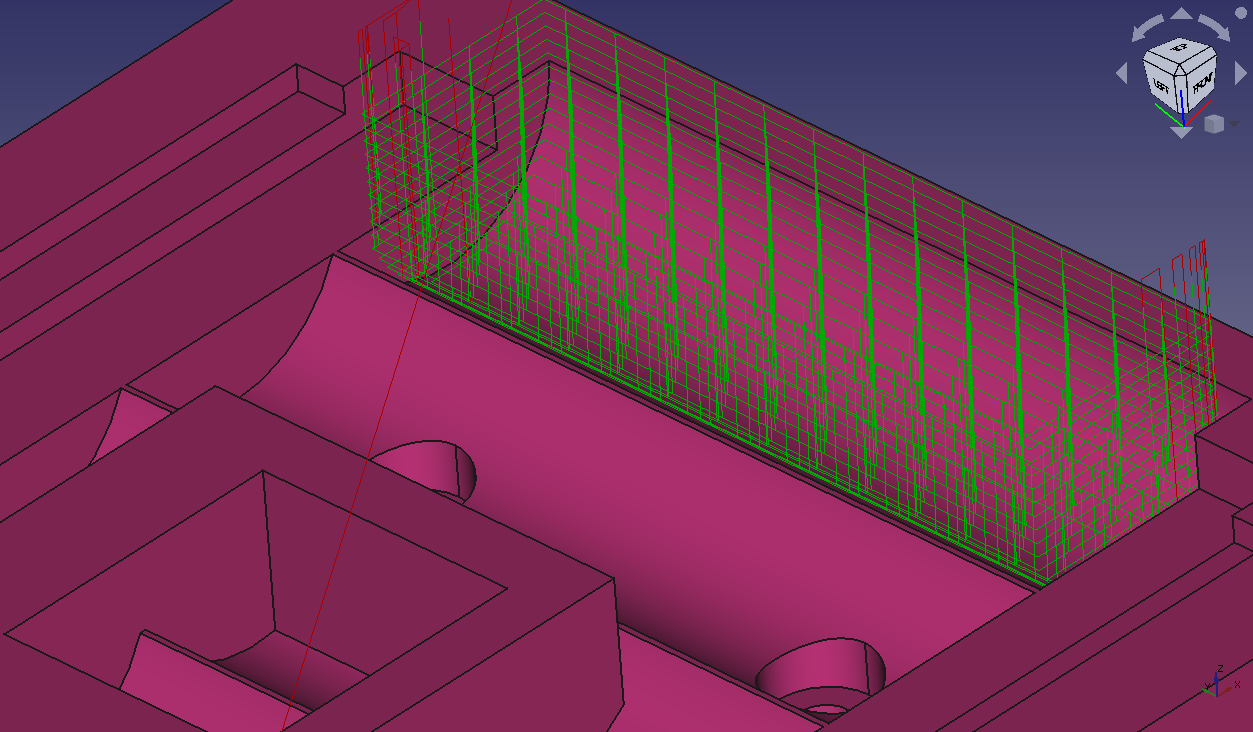
Sample image of 3D Pocket operation used to clear cylindrical battery holder.
Usage
Creating a 3D Pocket
-
From within a Job, select one or more Faces from the Job Model to include as the Base Geometry.
-
There are several ways to invoke the command:
-
Press the
3D Pocket button on the New Operations toolbar. -
Select the option from the menu.
-
-
On the Tool Controller tab select the Tool Controller and Coolant mode for the Operation. 26.3 and later
-
Add or subtract Base Geometry elements as needed to configure the Operation.
-
On the Heights tab check Clearance, Retract (safe height), Start depth, Step down and Finish step down. 26.3 and later depths and heights share a single Heights tab. The Final depth is computed from the selected Base Geometry and cannot be edited.
-
On the Operation tab set the Cut Mode (Climb or Conventional), the clearing Pattern, the Angle for the Line, ZigZag and Grid patterns, the Step over percentage, Pass Extension, Min travel, Use rest machining, and optionally Use start point (the start point can be picked in the 3D view with the adjacent button, introduced in 26.3).
-
Click Apply to observe the Toolpath for the passes of the Operation. Adjust parameters until satisfied with the Operation.
-
Click OK to save the Operation.
Notes
-
All Toolpaths from this Operation are computed for a flat end mill using the diameter of the Tool Bit in the selected Tool Controller. Ball end and other Tool Shapes are not respected for Toolpath generation.
Options
-
Use the Adaptive Pocket Finish property to attempt to minimize air milling below a 3D Pocket in cases where the pocket is a hole through the model.
-
Use the Adaptive Pocket Start property to attempt to minimize air milling upon entry to the pocket. For example, look at the sample image above in the Description section of this page. In order to reduce the air milling above that 3D Pocket, toggle this property to True and the Toolpaths will begin closer to the pocket, much nearer to where the pocket actually begins. See the following image and note the difference in the Toolpath start height. The air milling is reduced.
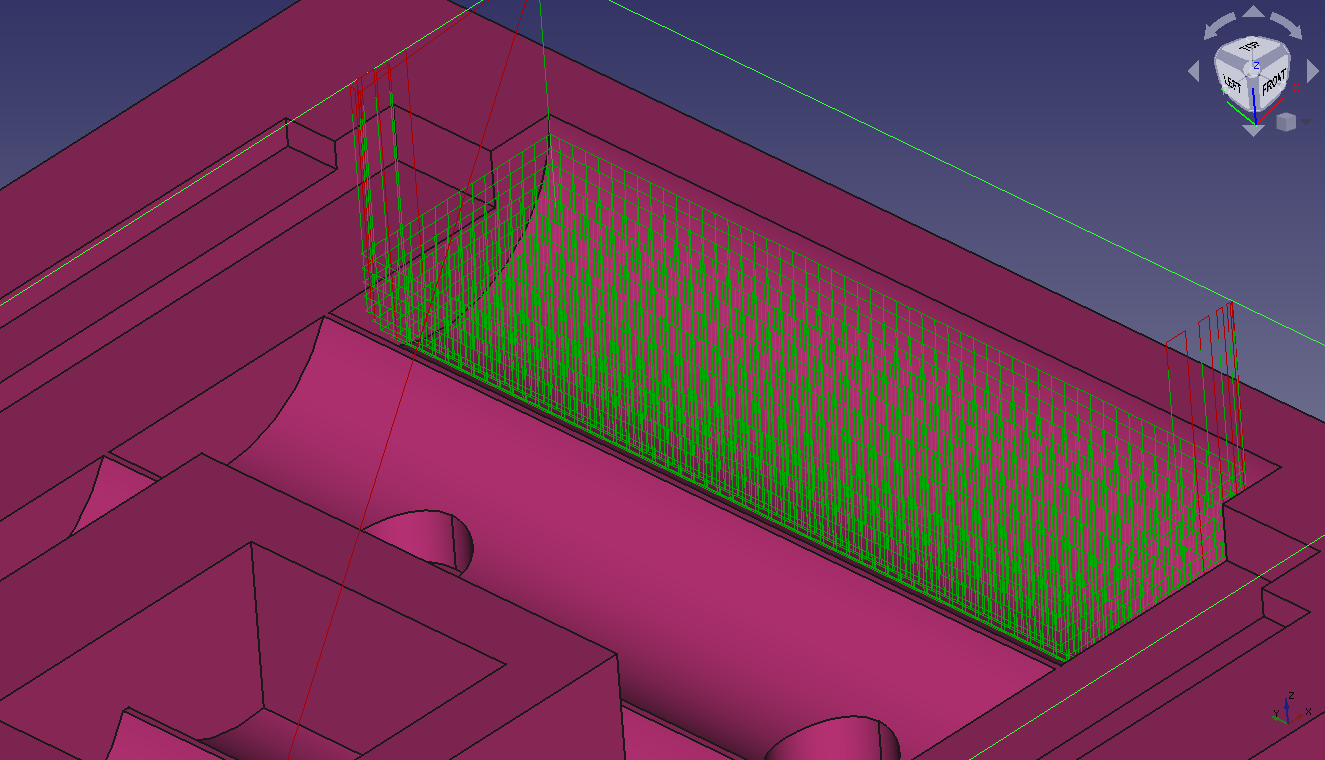
Sample image of 3D Pocket operation used to clear cylindrical battery holder with the Adaptive Pocket Start enabled in order to reduce air milling upon entry.
-
Process Stock Area is intended for processing the whole Model against the Stock when no Base Geometry is selected; verify on your version whether the Operation produces a Toolpath without Base Geometry.
Properties
Data
Note: It is suggested that you do not edit the Placement property of path operations. Rather, move or rotate the CAM Job model as needed.
-
Placement: Overall placement[position and rotation] of the object - with respect to the origin (or origin of parent object container)
-
Angle: Angle in degrees applied to rotation of the object around Axis property value
-
Axis: Axis (one or multiple) around which to rotate the object, set in sub-properties: X, Y, Z
-
X: X-axis value
-
Y: Y-axis value
-
Z: Z axis value
-
-
Position: Position of the object, set in sub-properties: X, Y, Z - with respect to the origin (or origin of parent object container)
-
X: X-distance value
-
Y: Y-distance value
-
Z: Z-distance value
-
-
-
Label: User-provided name of the object (UTF-8)
-
Clearance Height: The height needed to clear clamps and obstructions
-
Final Depth: Final Depth of Tool- lowest value in Z
-
Finish Depth: Maximum material removed on final pass.
-
Safe Height: Rapid safety height between locations.
-
Start Depth: Starting Depth of Tool- first cut depth in Z
-
Step Down: Incremental Step Down of Tool
-
Active: Make False, to prevent operation from generating code
-
Base: The base geometry for this operation
-
Block Delete: Enable post processor to add block delete commands. introduced in 26.3
-
Comment: An optional comment for this Operation
-
Coolant Mode: The coolant mode for this operation.
-
Cycle Time: The cycle time estimation for this operation.
-
Sorting Mode: Order processing of the shapes. Automatic: uses nearest neighbour algorithm to sort shapes. Manual: uses order of shape selection. introduced in 26.3
-
Split Arcs: Split arcs into discrete segments.
-
Tool Controller: The Tool Controller that will be used to calculate the Toolpath
-
User Label: User assigned label
-
Workplane: introduced in 26.3 The link to the Work Plane that the Operation works in. An Operation with no link works in the XY of the Job.
-
Adaptive Pocket Finish: Use adaptive algorithm to eliminate excessive air milling below planar pocket bottom.
-
Adaptive Pocket Start: Use adaptive algorithm to eliminate excessive air milling above planar pocket top.
-
Angle: Angle of the grid, line and zigzag patterns. Default 45°. Hidden when Clearing Pattern is Offset. 26.3 and later: renamed from Zig Zag Angle.
-
Clearing Pattern: Clearing pattern to use. Values: ZigZag (default), Offset, ZigZagOffset, Line, Grid. introduced in 26.3: replaces Offset Pattern (formerly in the Face property group).
-
Cut Mode: The direction the Toolpath runs around the part: Climb or Conventional.
-
Extra Offset: Extra offset to apply to the operation. Direction is operation dependent.
-
Force Max Step Over: Force maximum stepover even if not all area is cleared. Without this flag set, the stepover may be reduced (for large stepover, >50%) to ensure full area coverage. introduced in 26.3
-
Handle Multiple Features: Choose how to process multiple Base Geometry features. Values: Collectively (default), Individually.
-
Min Travel: Use 3D Sorting of Path
-
Process Stock Area: Process the model and stock in an operation with no Base Geometry selected.
-
Retract Threshold: Set distance which will attempt to avoid unnecessary retractions; moves shorter than this distance stay at depth. 26.3 and later: replaces Keep Tool Down.
-
Start At: Start pocketing at center or boundary. Values: Center, Edge.
-
Step Over: Percent of cutter diameter to step over on each pass. Default 50.
-
Use Rest Machining: Skips machining regions that have already been cleared by previous operations.
Read-only values computed by the Operation:
-
Op Start Depth: Holds the calculated value for the StartDepth
-
Op Final Depth: Holds the calculated value for the FinalDepth
-
Op Tool Diameter: Holds the diameter of the Tool Bit
-
Op Stock Z Max: Holds the max Z value of Stock
-
Op Stock Z Min: Holds the min Z value of Stock
-
Start Point: The start point of this Toolpath.
-
X: X-distance value
-
Y: Y-distance value
-
Z: Z-distance value
-
-
Use Start Point: Make True if specifying a Start Point. 26.3 and later: the point can be picked from the task panel.
Scripting
See also: FreeCAD Scripting Basics.
Example:
import Path.Op.Pocket as PathPocket

op = PathPocket.Create('Pocket3D')
op.Base = [(doc.Model, ['Face6'])]
op.ToolController = job.Tools.Group[0]
op.StepOver = 50
op.ClearingPattern = 'Offset'
doc.recompute()
The Operation must belong to a Job; use Path.Main.Job helpers or create it with the GUI command.