CAM SimulatorGL
 CAM SimulatorGL
- Menu location
-
- Toolbar
-
Tool Commands → Simulators → CAM Simulator (default entry)
- Workbenches
- Default shortcut
-
P N
- Introduced in version
-
1.0
- See also
Description
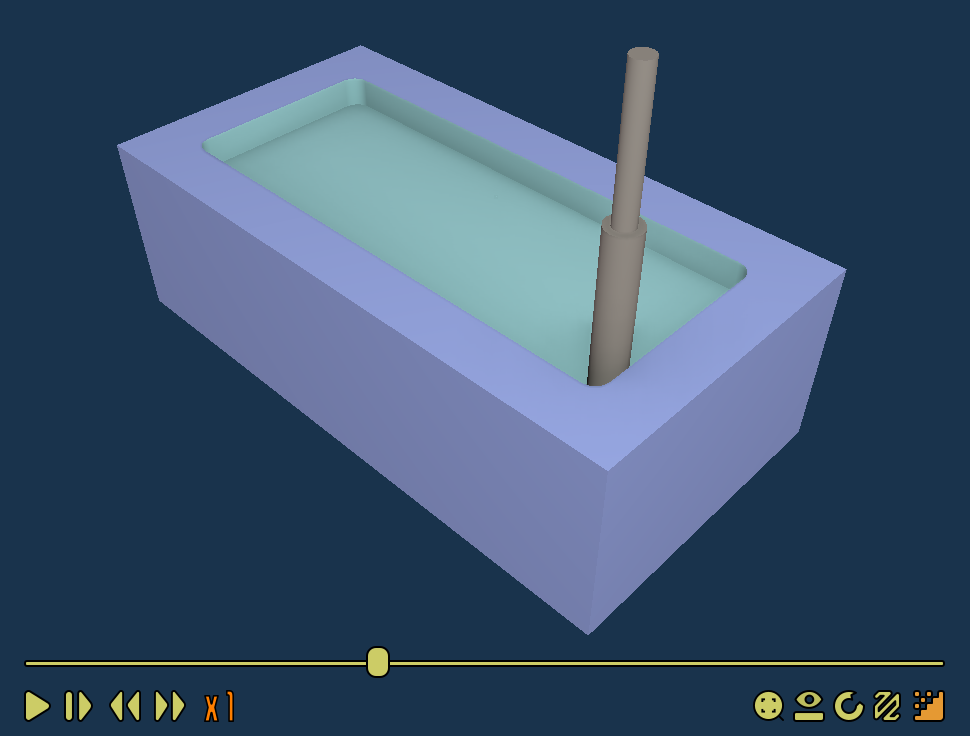
The CAM SimulatorGL command is the default simulator and an alternative to the Legacy CAM Simulator, which remains available in the same toolbar group (the parameter DefaultSimulatorLegacy swaps the order). Its tooltip reads: Simulates G-code on stock. It renders with low-level OpenGL in its own view and is meant to be faster and more precise than the old simulator. 26.3 and later: the view opens as a tab in the main window next to the 3D view, follows the navigation style set in the Preferences, and accepts the standard view commands (orthographic/perspective, zoom in/out, fit all).
Usage
-
There are several ways to invoke the command:
-
Press the
CAM Simulator button. -
Select the CAM
option from the menu. -
Use the keyboard shortcut: P then N.
-
-
Select the Job in the Job drop-down (the Job of the current selection is preselected, 26.3 and later also from a selected Operation).
-
Uncheck Operations that should not be simulated; with Follow operations visibility checked, hidden Operations start unchecked. introduced in 26.3
-
Set Accuracy (Low, Medium, High).
-
Press the
 (Activate / resume simulation) button to open the simulator view. Play is disabled when no Operation is checked.
-
Use the buttons below the view, left to right: Play simulation, Single step simulation, Decrease simulation speed (introduced in 1.1), Increase simulation speed (current multiplier shown as xN), Reset camera (introduced in 1.1), Toggle view simulation/model, Toggle turn table animation, Show/hide tool path, Toggle ambient occlusion.
-
The slider above the buttons scrubs through the Toolpath.
-
Navigate the view with the same mouse and keyboard controls as the 3D view (see Mouse navigation). 26.3 and later
-
-
Close the task panel with Close.
Task panel
-
Accuracy: simulation quality, Low, Medium or High; lower quality is faster.
-
Job: the Job to simulate.
-
Follow operations visibility: preselect Operations according to their visibility in the 3D view (stored in the preference SimulatorFollowsVisibility). introduced in 26.3
-
Operations list: Active Operations to include.
Notes
-
The simulator builds a revolved profile from the Tool Bit solid of each Tool Controller, so all Tool Shapes are represented; the Tool Bit objects themselves are not modified (26.3 and later).
-
Drilling cycles including G84 retract are expanded.
-
Rotary axis words are not simulated. Use CAMotics or another external simulator for rotary Toolpaths.
-
introduced in 1.1: Reset camera and Decrease simulation speed buttons were added.