CAM SimulatorGL
 CAM SimulatorGL
- Menu location
-
- Workbenches
- Default shortcut
-
kbd:[P N]
- Introduced in version
-
1.0
- See also
Description
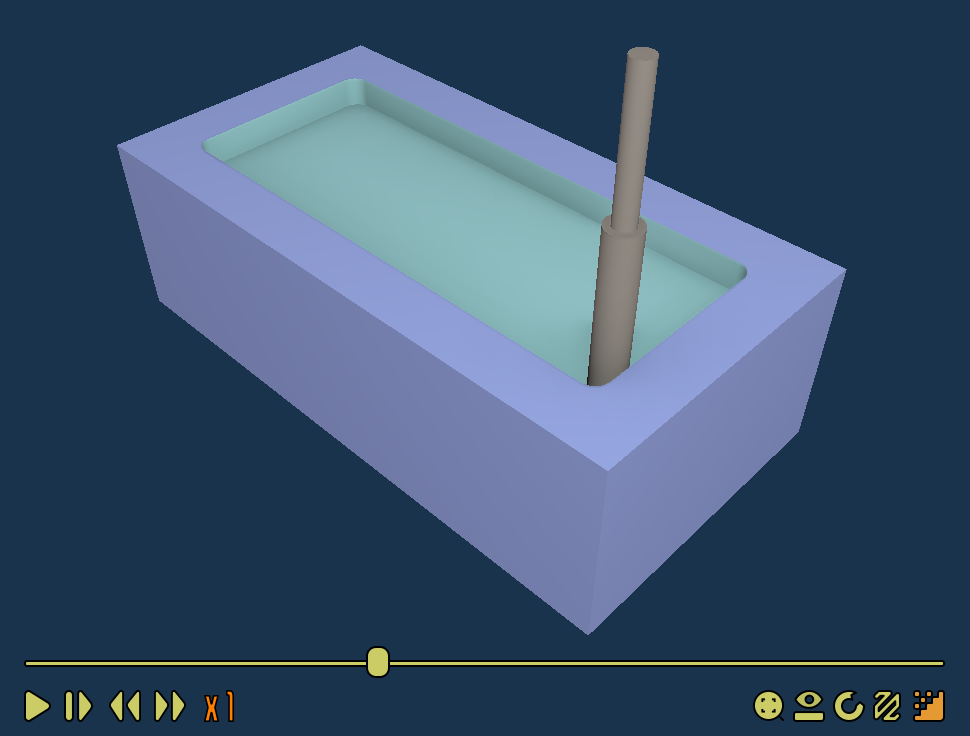
The CAM SimulatorGL command is a new alternative to Legacy CAM Simulator. It’s based on low-level OpenGL functions. To eliminate interference with the 3D View of FreeCAD, it works in a separate window with a separate OpenGL context. It’s meant to be faster and more precise than the old simulator.
Usage
-
There are several ways to invoke the command:
-
Press the
CAM Simulator button. -
Select the option from the menu.
-
Use the keyboard shortcut: P then N.
-
-
De-select any Operations that are not to be simulated
-
Tune the Accuracy setting.
-
Select the Job for simulation from the drop menu.
-
Press the
 (Activate / resume simulation) button
-
A separate window with the simulator will open.
-
Use the left-side buttons: Play, Single-Step, Decrease/Increase simulation speed and the slider to control the animation.
-
Use the right-side buttons to: Reset camera, Show/hide overlay of base model, Orbit the model, Display the path and Enable/disable Ambient Occlusion.
-
Control the 3D View with the following mouse controls:
-
Zoom: use the mouse wheel or hold Ctrl and Shift and move the cursor to zoom in and out
-
Pan: hold the middle mouse button or Shift and move the cursor
-
Rotate: hold the middle mouse button, then press and hold the left mouse button and move the cursor or hold Alt and move the cursor
-
-
Properties
-
Accuracy: The accuracy of the simulation expressed as a percentage indicating the simulations deviation from the Job. For interactive simulation, reducing accuracy to 0.3 works much faster.
-
Job: The Job used as the basis of the simulation.
-
Operation List: The list of Operations selected for inclusion in the simulation.