CAM Workbench

Introduction
The CAM Workbench is used to produce machine instructions for CNC machines from a FreeCAD 3D model. These produce real-world 3D objects on CNC machines such as mills, routers, lasercutters, or similar. Typically, instructions are a G-code dialect.
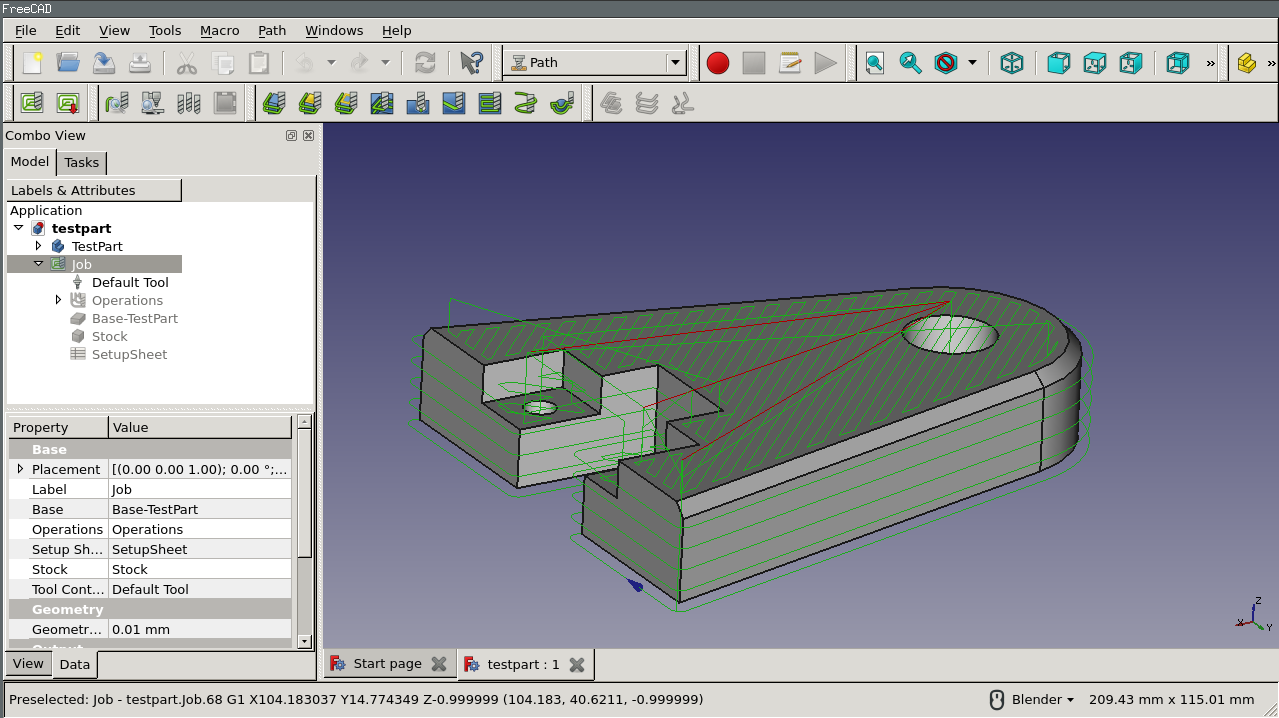
Screenshot of the former Path Workbench interface; toolbars and command names have changed since the rename to CAM.
The FreeCAD CAM Workbench workflow creates these machine instructions as follows:
-
A 3D model is the base object, typically created using one or more of the
 Part Design,
  Part or
  Draft Workbenches.
 -
A Job is created. It holds the Model, the Stock, the Tool Controllers that reference Tool Bits from a Tool Library, the Operations, and the Post-Processor selection.
-
Optionally a Machine definition is selected for the Job (Machine Library, introduced in 26.3) so that post-processing and rotary kinematics use the machine’s axis configuration.
-
Toolpaths are created using Operations such as Profile and Pocket Shape. These CAM objects use the internal FreeCAD G-code dialect, independent of the CNC machine.
-
Sanity Check is run before post-processing to report missing Tool Controller speeds, depths, or output settings.
-
The Job is exported to G-code matching your machine. This step is called post processing; there are different Post-Processors available.
General concepts
The CAM Workbench generates G-code defining the Toolpaths required to mill the model on the target machine in the FreeCAD internal G-code dialect, which is later translated to the appropriate dialect for the target CNC controller by the selected Post-Processor.
The G-code is generated from directives and Operations contained in a CAM Job. The Job Workflow lists these in the order they will be executed. The list is populated by adding Operations, Path Dressups, Supplemental Commands, and Path Modifications from the CAM menu, or GUI buttons.
introduced in 26.3: An Operation works in a Work Plane, a named frame that the Job holds and that several Operations can share. An Operation with no Work Plane works in the XY of the Job, with the Tool Axis along +Z. The Operation generates its Toolpath in the frame of the Work Plane. The read-only Placement property of the Operation positions the Toolpath in the document.
The CAM Workbench provides a Toolbit Library Manager and a Toolbit selector, G-code inspection, and two simulators. It links the Post-Processor and allows importing and exporting Job Templates.
The CAM Workbench has external dependencies including:
-
The FreeCAD 3D model units are defined in . The Post-Processor and Machine configuration define the final G-code units.
-
The default Job Template, geometry tolerance, curve accuracy, default Post-Processor, output path and file-save policy, and default Stock are defined on the page.
-
Asset storage location and the Machine Library (Add, Edit, Delete machine definitions, introduced in 26.3) are managed on the page.
-
Colors are defined in the tab.
-
Holding tag parameters are defined in the tab.
-
Warning suppression and OpenCamLib activation are on the page; see CAM experimental.
-
That the base 3D model quality supports the CAM Workbench requirements, passes Check Geometry.
The preference pages under CAM appear in this order: Assets, Job Preferences, Dressups, GUI, Advanced.
Limitations
Some current limitations of which you should be aware are:
-
Most Operations are not true 3D but only 2.5D capable. This means that they take a fixed 2D shape and can cut it down to a given depth. However, several Operations produce true 3D Toolpaths:
 3D Pocket,
  3D Surface,
  Waterline and, with experimental features enabled,
  Rotary Surface introduced in 26.3.
 -
Most Operations target a 3-axis (XYZ) CNC mill or router. Indexed 3+2 positioning is derived from the selected Machine definition (introduced in 26.3), and continuous 4-axis surfacing is provided by the experimental Rotary Surface Operation. Lathe Operations are available through the external TurningAddon add-on, which has no page in this documentation (see CAM FAQ).
-
Most Operations generate Toolpaths as if the Tool Bit were a plain end mill, regardless of the Tool Shape assigned to the Tool Controller. introduced in 26.3: linking moves, Engrave, 3D Surface and the drilling-family Operations now account for the Tool Shape.
-
The Operations within the CAM Workbench are not aware of clamping mechanisms in use to secure the model to your machine. Consequently, please review and simulate the Toolpaths you generate prior to sending the code to your machine. If necessary, model your clamping mechanisms in FreeCAD in order to better inspect the Toolpaths generated. Look for possible collisions with clamps or other obstacles along the Toolpaths.
Units
Unit handling in CAM can be confusing. There are several points to understand:
-
FreeCAD base units for length and time are 'mm' and 's' respectively. Velocity is thus 'mm/s'. This is what FreeCAD stores internally regardless of anything else.
-
The default unit schema uses the default units. If you’re using the default schema and you enter a feed rate without a unit string, it will get entered as 'mm/s'.
-
Most CNC machines expect feed rate in the form of either 'mm/min' or 'in/min'. Most Post-Processors will automatically convert the unit when generating G-code.
Schemas:
-
Changing schema in preferences changes the default unit string for the input fields. If you design in metric, use the "Metric small parts & CNC (mm, mm/min)" schema. If you design in US units, "Imperial decimal (in, lb)", "US customary (in, lb)" or "Building US (ft-in, sqft, cft)" will work.
-
Changing your preferred unit schema will have no effect on output but will help avoid input errors.
-
introduced in 26.3: The Job creation dialog includes a unit schema selector, and each Tool Bit stores its own Units (Metric or Imperial).
Output:
-
Generating the correct unit in output is the responsibility of the Post-Processor and is done only at that time.
-
Machine output unit is completely unrelated to your selected unit schema.
-
Post-Processors produce either metric (G21) output, imperial (G20) output, or are configurable. Configurable Post-Processors default to metric (G21).
-
For machine-based Post-Processors (introduced in 26.3) the output unit is part of the Machine definition. For legacy Post-Processors (
*_legacy_post), pass the argument in the Job’s output configuration (for example--inchesfor linuxcnc_legacy). Either can be stored in a Job Template and set as your default template to make it automatic for all future Jobs.
Inspection:
-
Inspect Toolpath shows the internal G-code, so feed rates appear in mm/s because the Toolpath has not been post-processed.
Heights and depths
Many of the commands have various heights and depths:
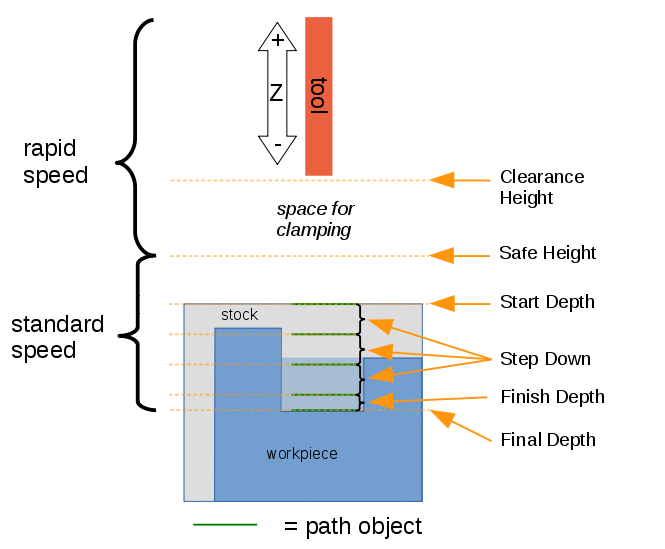
Visual reference for Depth properties (settings)
introduced in 26.3: Each height and each depth of an Operation is a distance along the Tool Axis, measured from the origin of the Work Plane of the Operation. The Tool Axis is the local +Z of the Work Plane. For an Operation with no Work Plane, each height and each depth is a Z value in the coordinates of the Job. The buttons that set Start Depth and Final Depth from the selected geometry measure from the Work Plane of the Operation. Work Plane gives the detail.
Commands
Some commands are hidden until OpenCamLib support or experimental features are enabled in the CAM Advanced preferences. See CAM experimental.
Project Commands
-
 New Job: Creates a new CNC Job.
 -
introduced in 26.3 Work Plane: Creates a named Work Plane on a Job, from a selected planar face or at the Job origin.
-
 Sanity Check: Checks the Job for common errors and produces an HTML report.
 -
Quick Validate: Runs a fast validation of the Job without generating the full Sanity report. Not present in toolbars or menus; available through the shortcut P then V.
-
 Post Process: Post-processes the selected Job to G-code using the chosen Post-Processor and Machine, with a preview of the output. introduced in 26.3: redesigned dialog with Overview, Operations, Workplan tabs and an output filename template.
 -
 Post Process Selected: Post-processes only the selected Operations of a Job, including Operations inside a Dressup. introduced in 26.3
 -
 Export Template: Exports the current Job as a template.
Tool Commands
-
 CAM Simulator: Simulates the G-code on the Stock in a dedicated simulator window inside the main window. introduced in 1.0; integrated as a document window in 26.3 and later. The simulators share one toolbar button group; set the
 DefaultSimulatorLegacyparameter to make the legacy simulator the default. -
 Legacy CAM Simulator: Shows the milling operation like it’s done on the machine.
 -
 CAMotics: Simulates the Job with the external CAMotics simulator; requires the Enable OCL dependent features preference and CAMotics 1.2.2 or newer (command-line
 camoticsand its Python module). Shortcut P C. -
 Inspect Toolpath: Shows the internal G-code of an Operation for checking.
 -
 Finish Selecting Loop: Completes the selection of edges or faces that form a loop from one or two selected edges or a face; modifier keys select inner edges (Ctrl), outer edges (Ctrl+Alt), faces at the same height (Shift) or all edges (Alt). Shortcut P L.
 -
 Toggle Operation: Toggles the Active state of the selected Operations, or of every Operation when a Job or its Operations group is selected (introduced in 26.3). Shortcut P X.
 -
 Toolbit Library Manager: Opens the editor for Tool Libraries and Tool Bits (CAM menu only).
 -
Add Toolbit…: Opens the Toolbit selector dock to add a Tool Controller to the Job. Shortcut P T.
-
 Save Toolbit / Save Toolbit As: available in the context menu of a Tool Bit in the Job tree; writes the Tool Bit back to its library file. New Toolbit and Load Tool commands exist but are reachable only through the Toolbit Library Manager.
introduced in 26.3: The Tool Controller editor includes a Feeds and Speeds Wizard that proposes feed and spindle values from the Tool Bit and a selected material, and Tool Bits embedded in a Job can be updated to their current library version.
Basic Operations
-
 Profile: Creates a profile Toolpath from the entire model, or from one or more selected faces or edges.
 -
 Pocket Shape: Creates a pocket Toolpath from selected faces or, in 26.3 and later, horizontal edges.
 -
 Mill Facing: Machines the top surface of the Stock or selected faces with zigzag, directional, bidirectional or spiral patterns. introduced in 26.3 (replaces the Face operation).
 -
 Helix: Creates a helical drilling Toolpath from circular holes of the Model.
 -
 Adaptive: Creates an adaptive clearing and profiling Operation.
 -
 Slot: Creates a single horizontal slot between two points taken from selected geometry or custom points.
Drilling Operations
-
 Drilling: Creates a drilling-cycle Toolpath from circular holes; the Strategy property selects Drilling or Tapping (G84/G74) introduced in 26.3.
 -
 Thread Milling: Creates a Thread Milling Operation from features of a base object.


3D Operations
-
3D Pocket: Creates a Toolpath for a 3D pocket.
-
3D Surface: Creates a 3D surfacing Toolpath using OpenCamLib. Requires Enable OCL dependent features.
-
Waterline: Creates waterline Toolpaths; 26.3 and later adds the OCL Adaptive algorithm. Requires Enable OCL dependent features.
-
Planar Surface: Creates a Planar Surface Operation from a model. Requires Enable OCL dependent features and experimental features. introduced in 26.3
-
Rotary Surface: Continuous 4-axis surfacing of a Model mounted on a single rotary axis. Requires Enable OCL dependent features and experimental features. introduced in 26.3
Path Dressup
All Dressup commands share the  Dressup icon.
-
Array: Creates a linear, polar or points-based array of a selected Operation’s Toolpath as a Dressup; preferred over the Array Path Modification. introduced in 1.1
-
Axis Map: Remaps one axis of a Toolpath to another.
-
Boundary: Adds a boundary Dressup to a selected Toolpath.
-
Dogbone: Adds a dogbone Dressup to a selected Toolpath.
-
Drag Knife: Adds a dragknife Dressup to a selected Toolpath.
-
Lead In/Out: Adds a lead-in and/or lead-out to a selected Toolpath. 26.3 and later adds the LineZFollow style.
-
Mirror: Mirrors the Toolpath of a selected Operation across a chosen axis or plane. introduced in 26.3
-
Ramp Entry: Adds a ramp entry Dressup to a selected Toolpath. 26.3 and later: can be applied on top of Lead In/Out.
-
Tag: Adds a holding tag Dressup to a selected Toolpath. 26.3 and later: places tags automatically on several closed Toolpaths.
-
Z Depth Correction: Corrects the Z depth using a Probe Map. 26.3 and later: points outside the probed area produce a warning instead of an error.
Supplemental Commands
-
 Comment: Adds a comment to the CNC program.
 -
 Stop: Inserts a full stop of the machine.
 -
 Custom: Inserts a custom G-code snippet; 26.3 and later supports expressions enclosed in @ characters.
 -
 Probe: Creates a probing grid from a Job’s Stock.
 -
Path from Shape: Creates a Toolpath object from a selected Part shape using a Tool Controller. introduced in 1.1, Experimental. Replaces the earlier From Shape command.
Path Modification
-
 Copy Operation: Copies the selected Operations, including their Dressups, into the Job (26.3 and later: multiple selection and recursive copy).
 -
 Array: Creates an array from selected Toolpaths; 26.3 and later adds the Points pattern type. Prefer the Array Dressup (1.1 and later).
 -
 Simple Copy: Creates a non-parametric copy of one or more selected Operations (26.3 and later: multiple selection).
Miscellaneous
-
 Area: Creates a feature area from the selected objects.
 -
 Area Workplane: Selects a workplane for a feature area.
Both Area commands appear on the Helpful Tools toolbar only when experimental features are enabled.
-
Property Bag: Creates an object that stores custom reference properties which Operations and Tool Bits can use through expressions. Found in .
-
Start Point Selection: Sets the Start Point of the selected Operation from a picked vertex; available from the Operation’s context menu and, 26.3 and later, from the Profile and Pocket Shape task panels.
-
 Compound: Creates a compound Toolpath object from selected Toolpaths (scripting and macro use; not in toolbars).
Context menu
Right-clicking in the model tree offers context-dependent commands (improved in 26.3 and later):
-
On shapes: New Job.
-
On a Job: Toggle Operation, Export Template, Sanity Check and Post Process.
-
On Operations: the Path Dressup submenu (single Operation), a Path Modification submenu with Array, Copy Operation and Simple Copy, Toggle Operation, Inspect Toolpath (single Operation), Post Process and Post Process Selected.
-
introduced in 26.3 On an Operation: Set Work Plane from Face creates a Work Plane from a picked planar face and links the Operation to the Work Plane.
-
On an Operation that has a Start Point: Start Point Selection.
-
On a Tool Bit: Save Toolbit and Save Toolbit As.
Obsolete Commands
-
 Fixture: Inserted a fixture-offset (G54 to G59) command. Removed from menus in 1.1 and later; Fixtures are now set in the Job’s Output settings.
 -
Face: Legacy facing operation. Replaced by Mill Facing in 26.3 and later; existing documents still open.
-
 Tapping: Experimental G84/G74 tapping operation in introduced in 1.1. Consolidated into Drilling as the Tapping Strategy in 26.3 and later.
Tool Bit architecture
Tool Bits, Tool Shapes, Tool Libraries and Tool Controllers are stored as CAM assets.
-
Feeds and Speeds Wizard introduced in 26.3
-
Machine introduced in 26.3: machine definitions (
.fcm) with axis configuration used by post-processing and rotary Operations.
Other
-
CAM FAQ: The CAM Workbench shares many concepts with other CAM software packages but has its own peculiarities. If something seems wrong this is a good place to start.
-
CAM Machine: Define machines (axes, rotary kinematics, output options) in the Machine Library and assign one to a Job for machine-based post-processing. introduced in 26.3
-
CAM Setup Sheet: Use the Job’s Setup Sheet to customize default values and expressions for new Operations.
-
CAM Postprocessor Customization: If you have a special machine which cannot use one of the available Post-Processors you may need to write your own.
-
Shipped Post-Processors: machine-based (introduced in 26.3) centroid, generic, generic_plasma, grbl, linuxcnc, mach3_mach4, marlin, masso_g3, opensbp, smoothie, svg, dxf; plus the legacy
*_legacy_postscripts. See Postprocessor Customization. -
CAM fourth axis: Indexed 3+2 positioning from the Machine definition and continuous rotary surfacing. Note: the per-operation Enable Rotation properties described on that page were removed in 26.3 and later.
Preferences
-
 Preferences: Preferences available for the CAM Workbench.
Scripting
See CAM scripting.
Tutorials
-
CAM Walkthrough for the Impatient: a quick tutorial to get familiar with CAM.
-
Manual: Preparing models for 3D printing: includes a short CAM Job example (Profile and Pocket Shape on a Lego brick).
Videos
Note: videos recorded before FreeCAD 1.0 show the former Path Workbench; command names and the Tool Bit dialogs have changed.
-
FreeCAD Path: Custom paths with Python - Part 1 - 5: A playlist with a series of 5 videos in English by sliptonic. This series shows how to work with the CAM Workbench.
-
FreeCAD CAM Path Workbench: A playlist with a series of 7 videos in English by CAD CAM Lessons.
-
FreeCAD CAM CNC: A playlist with a series of 8 videos in English by CAD CAM Lessons.
-
Also see the Computer-Aided Manufacturing (CAM) section of the Video tutorials wiki page.
Roadmap
-
CAM Development Roadmap: Read this if you are a developer and want to contribute to CAM.