CAM Pocket Shape
 CAM Pocket Shape
- Menu location
-
- Workbenches
- Default shortcut
-
None
- Introduced in version
-
-
- See also
-
None
Description
The CAM Pocket Shape command creates a pocketing operation from selected bottom faces, or walls, of one or more pockets of the Job Model. It is found on the New Operations toolbar and in the CAM menu; its tooltip reads "Creates a pocket toolpath from a face or faces".
The CAM Pocket Shape object is made to be part of a  CAM Job.
Usage
-
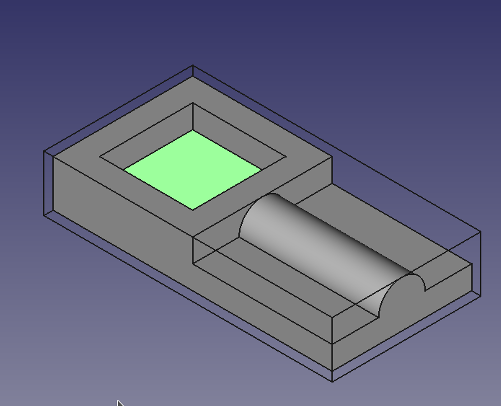
Select the bottom or the wall(s) of a pocket. While it is usually easier to select the bottom, the walls have to be selected when a pocket goes through all.
-
introduced in 26.3: Horizontal edges can also be selected; connected edges are combined into wires, and a closed horizontal wire is converted into a pocket face. Open wires or vertical walls whose projection forms a closed area can be closed with Close Open Paths.
-
There are several ways to invoke the command:
-
Press the
Pocket Shape button on the New Operations toolbar. The command uses the CAM_Pocket.svgicon. -
Select the option from the menu.
-
-
Adjust the desired properties.
Properties
Note: Not all of these Properties are available in the Task Window Editor. Some are only accessible in the Data tab of the Properties View panel for this Operation.
Note: It is suggested that you do not edit the Placement property of path operations. Rather, move or rotate the CAM Job model as needed.
-
Placement: Overall placement[position and rotation] of the object - with respect to the origin (or origin of parent object container)
-
Angle: Angle in degrees applied to rotation of the object around Axis property value
-
Axis: Axis (one or multiple) around which to rotate the object, set in sub-properties: X, Y, Z
-
X: X-axis value
-
Y: Y-axis value
-
Z: Z-axis value
-
-
Position: Position of the object, set in sub-properties: X, Y, Z - with respect to the origin (or origin of parent object container)
-
X: X-distance value
-
Y: Y-distance value
-
Z: Z-distance value
-
-
-
Label: User-provided name of the object (UTF-8)
-
Clearance Height: The height needed to clear clamps and obstructions
-
Final Depth: Final Depth of Tool Bit - lowest value in Z
-
Finish Depth: Maximum material removed on final pass. The height (thickness) of the last cutting level - set for a better finish.
-
Safe Height: (Retract in the task panel) The height above which rapid moves are allowed between locations.
-
Start Depth: Starting depth of Tool Bit - first cut depth in Z
-
Step Down: Incremental step down of Tool Bit during operation
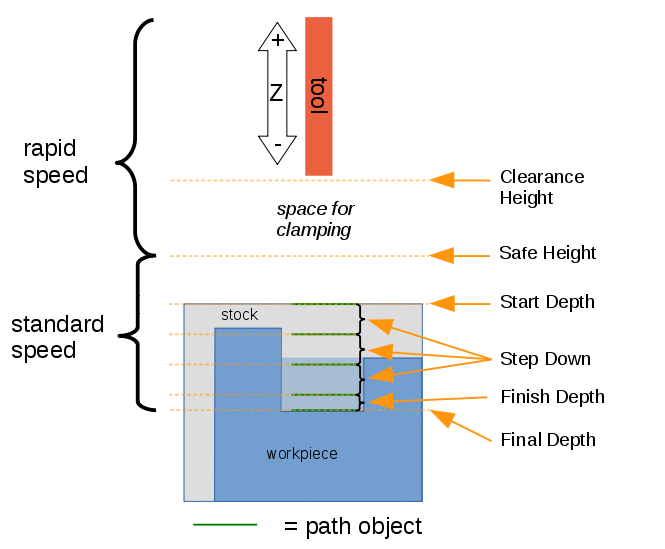
Visual reference for Depth properties (settings)
-
Extension Corners: When enabled connected extension edges are combined to wires.
-
Extension Length Default: Default length of extensions (default expression:
OpToolDiameter / 2.0, half the Tool Bit diameter). -
Extension Feature: (hidden) List of features to extend.
-
Active: Make False, to prevent operation from generating code
-
Base: The base geometry for this operation
-
Block Delete: introduced in 26.3 Enable the Post-Processor to add block delete commands
-
Comment: An optional comment for this Operation
-
Coolant Mode: The coolant mode for this operation:
None,FloodorMist -
Cycle Time: (read-only) The cycle time estimation for this operation.
-
Locations: Base locations for this operation (not editable in the task panel; the Extensions tab replaces the Base Location tab)
-
Sorting Mode: introduced in 26.3
Automaticsorts shapes with a nearest-neighbour algorithm;Manualfollows the selection order. -
Split Arcs: Split arcs into discrete segments
-
Tool Controller: Defines the Tool Controller used in the Operation
-
User Label: User assigned label
-
Workplane: introduced in 26.3 The link to the Work Plane that the Operation works in. An Operation with no link works in the XY of the Job.
These read-only properties hold values calculated by the operation. They are useful as sources for expressions.
-
Op Start Depth, Op Final Depth: the calculated default depths
-
Op Tool Diameter: the diameter of the Tool Bit
-
Op Stock ZMax, Op Stock ZMin: the Z extent of the Stock
-
Angle: introduced in 26.3 (formerly Zig Zag Angle) Angle of the grid, line and zigzag patterns relative to the X axis (default 45°). Hidden, and disabled in the task panel, when the pattern is
Offset. -
Clearing Pattern: introduced in 1.1 (formerly Offset Pattern; Pattern in the task panel) Clearing pattern to use:
ZigZag,Offset(default),ZigZagOffset,LineorGrid. Old documents are migrated automatically. -
Close Open Paths: introduced in 26.3 Close an open area formed by edges or vertical faces with a straight line so it can be pocketed.
-
Cut Mode:
ClimborConventional. Climb moves the Tool Bit into the cut on each rotation; in conventional mode the Tool Bit’s rotation and lateral movement are in the same direction. -
Extra Offset: Extra offset to apply to the operation - radial stock to leave on the walls. Shown as Radial stock to leave in the task panel.
-
Force Max Step Over: introduced in 26.3 Force the maximum stepover even if not all area is cleared. Without it the stepover may be reduced (for stepovers above 50 %) to ensure full coverage.
-
Min Travel: Use 3D sorting of the Toolpath to minimise travel; only applied when Use Start Point is enabled.
-
Retract Threshold: introduced in 26.3 Repositioning moves shorter than this distance stay down. Replaces Keep Tool Down; documents with Keep Tool Down checked get the expression
1 * OpToolDiameter. -
Start At: Start pocketing at
CenterorEdge. -
Step Over: Percent of Tool Bit diameter to step over on each pass (default 50 %).
-
Use Outline: (Ignore holes in the task panel) Uses the outline of the Base Geometry and ignores all holes.
-
Use Rest Machining: Skip regions that have already been cleared by previous operations of the Job.
-
Start Point: The start point of this Toolpath.
-
Use Start Point: Make True, if manually specifying a Start Point, then enter Start Points in the property data Start Points field.
Tasks Window Editor Layout
Descriptions for the settings are provided in the Properties list above.
This section is simply a layout map of the settings in the window editor for the Operation. The task panel has five tabs: Base Geometry, Extensions, Heights, Tool Controller introduced in 26.3 and Operation.
Base Geometry
-
Add: Adds selected element(s) which should be the base(s) for the Toolpath(s)
-
Remove: Remove the selected item(s) in the Base Geometry list
-
Clear: Clear all items in the Base Geometry list
-
The drop-down and Import button copy the Base Geometry of another operation in the Job.
Extensions
-
Enable extensions: turn the feature on
-
Show All: If selected, all potential extensions are visualized. Enabled extensions in purple, disabled extensions in yellow.
-
Extend corners: combine selected adjacent edges
-
Default length: extent of new extensions (default half the Tool Bit diameter)
-
Enable / Disable / Clear: act on the selected tree items
Operation
-
Cut Mode
-
Pattern (Clearing Pattern)
-
Angle (disabled for
Offset) -
Step over (%)
-
Radial stock to leave (Extra Offset)
-
Ignore holes (Use Outline)
-
Min travel
-
Use rest machining
-
Retract threshold
-
Use start point and the Set picked point as start point button introduced in 26.3
The Boundary Shape and Clear edges widgets in the shared pocket panel are hidden for Pocket Shape.
Scripting
See also: FreeCAD Scripting Basics.
import Path.Op.PocketShape as PathPocketShape

op = PathPocketShape.Create('Pocket_Shape')
op.Base = [(doc.Body, ['Face3'])]
op.ClearingPattern = 'Offset'
op.StepOver = 50
doc.recompute()