CAM Preferences
Overview
After selecting the CAM Workbench the preferences screen is found in the Preferences Editor, .
There are five pages: GUI, Assets (introduced in 1.1), Job Preferences, Dressups, and Advanced. All settings are stored under → BaseApp/Preferences/Mod/CAM.
GUI
Default Path Colors
-
Default pathline width (1 to 9).
-
Default normal path color.
-
Rapid path color.
-
Path highlight color.
-
Probe path color.
-
Default path marker color.
-
Bounding box normal color.
-
Bounding box selection color.
UI Settings
-
Path selection style: Shape, Bounding box or None; default behaviour when selecting Toolpaths in the 3D view.
-
Task panel layout: Classic, Classic - reversed, Multi-panel or Multi-panel - reversed; layout of the operation task panels.
-
Hide first rapid move introduced in 26.3: hide the initial rapid move in the Toolpath display.
-
Show editor before writing G-code introduced in 26.3: open the G-code editor for review before the post-processor output file is written.
-
Maximum lines of G-code to use highlighter introduced in 26.3 (default 1000): larger files are shown without syntax highlighting; set to zero to disable the highlighter.
Assets
introduced in 1.1
Asset Location
-
Default path: the CAM asset directory holding the
Toolsfolder (Bit,ShapeandLibrarysubfolders), theMachinesfolder and theTemplatesfolder for Job Templates. Use the folder button to pick a directory and Reset to return to the default (CamAssetsin the user application data directory). The directory must be writable. Changing it resets the remembered last tool library. See CAM Tools.
Machines
introduced in 26.3
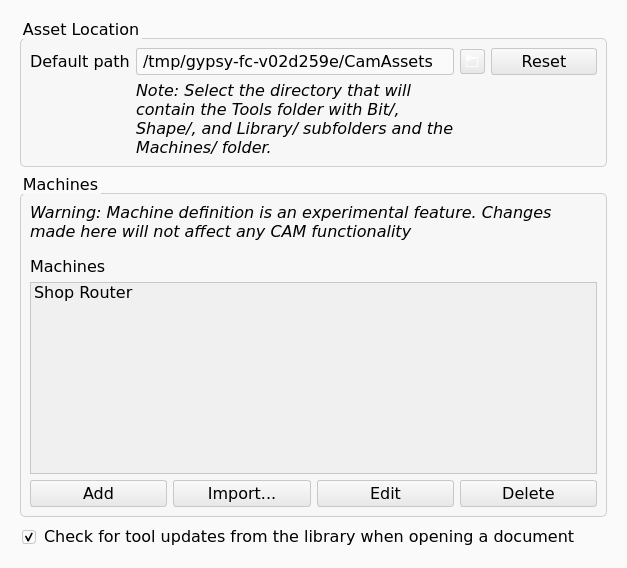
The figure shows the Assets page with one Machine in the Machines list.
-
List of Machine templates (
.fcmfiles in theMachinesfolder plus templates provided by add-ons). Add creates a new machine in the Machine Editor, Edit (or double-click) opens the selected machine in the Machine Editor, Delete removes the file after confirmation. See CAM Machine. -
Import… is between Add and Edit. Import… creates a Machine from the probe document of an MTConnect agent. The import dialog reads the probe document from the URL of the agent or from an XML file. The Machine Editor then opens with the imported Machine. The list shows the imported Machine after the Machine Editor is accepted.
-
The page shows the note Warning: Machine definition is an experimental feature.
-
Check for tool updates from the library when opening a document introduced in 26.3: when enabled (default), opening a document compares the Tool Bits embedded in its Jobs with the library and offers to update them (see CAM ToolBit).
Machine templates created here are selected per Job in the Job task panel (General tab → Machine) and used by machine-based post-processors; see CAM Machine and CAM Job.
Job Preferences
There are three tabs: General, Post processor and Setup.
General
-
Defaults → Template: Job Template preselected when creating a new Job; leave empty for none.
-
Geometry → Default geometry tolerance: default tolerance of new Jobs used when computing Toolpaths; smaller values increase accuracy and computation time.
-
Geometry → Default curve accuracy introduced in 26.3: accuracy used when arcs are approximated; smaller values increase accuracy and computation time.
Post processor
-
Output File → Default path: default directory and optional file name for the G-code output. Substitutions:
%Ddirectory of the active document,%dname of the active document,%Muser macro directory,%jname of the Job; when output is split:%TTool Number,%tTool Controller label,%Wwork coordinate system,%OOperation label,%Ssequence number. -
Output File → File save policy: Open file dialog, Open file dialog on conflict, Overwrite existing file, or Append Unique ID on conflict.
-
Post Processor → Post processors selection: check the post-processors that should be offered in Jobs; unchecked ones are blacklisted.
-
Post Processor → Default post processor and Default arguments: preselected for new Jobs.
Dressups
Defaults for the Tag dressup.
-
Tag Parameters: Default width, Default height, Default angle (plunge angle of the tag flanks), Default radius (fillet on the tag’s top edge).
-
Tag Generation: Initial # tags: number of tags created when a new dressup is added.
Advanced
-
Warnings: Suppress all missing speeds warning, Suppress missing rapid speeds warning (ignored if all speed warnings are suppressed), Suppress selection mode warning.
-
OpenCAMLib: Enable OCL dependent features (requires a restart; enables the Surface, Waterline and, with experimental features, Rotary Surface operations and the Camotics command) and Suppress openCAMlib warning.
Parameters without a preferences page
Under BaseApp/Preferences/Mod/CAM:
-
EnableExperimentalFeatures(Bool): enables the Helpful Tools toolbar (Area, Area Workplane), Rotary Surface (with OCL) and Path Shape with Tool Controller; requires a restart. -
DefaultSimulatorLegacy(Bool): makes the legacy CAM Simulator the default entry of the simulator toolbar button. -
PostProcessorBlacklist(JSON list, maintained by the Post processors selection list). -
DefaultStockTemplate(String): stock defaults written by the Setup tab. -
CheckAssetPathWritable(Bool, default true): skip the writability check of the asset path when disabled. -
DefaultFilePath(String): legacy tool/template directory, migrated into the asset path on first use.
Under BaseApp/Preferences/Mod/CAM/Tools:
-
ToolPath: the asset directory. -
LastToolLibrary,LastToolLibrarySortKey: library and sort order remembered by the Library Manager and Toolbit Selector. -
ToolUpdateOnLoad: the Assets page checkbox.