CAM Walkthrough for the Impatient
- Topic
-
CAM Workbench
- Level
-
Beginner/Moderate
- Time
-
15 minutes
- Author
-
Chrisb
- Fcversion
-
26.3
| The screenshots on this page still show the pre-1.0 Path Workbench dialogs (old Job dialog, Tool subpanel, legacy simulator) and need to be re-captured against 26.3. The text below describes the current interface. |
Aim
Demonstrating the creation of a  CAM Workbench Job derived from a 3D Model. Then generating dialect-correct G-Code for a target CNC mill.
The 3D Model
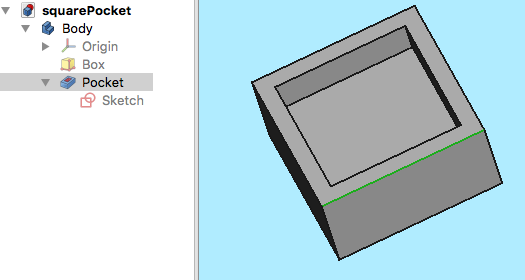
1. The Project begins with a simple FreeCAD model designed in the  Part Design a cube with a rectangular pocket,
::
::
Above: Created in the Part Design including a Body, a Box with a Pocket, based on a Sketch oriented in the  XY-plane.
2. With the 3D Model completed, switch to the CAM Workbench via the Workbench selector (drop-down menu)
The Job
3. Now we create a CAM Job by either of the following methods:
-
Press the
 New Job button on the Project Setup toolbar.
 -
Using the P then J keyboard shortcut.
-
Using the entry from the top menu.
:: ;;
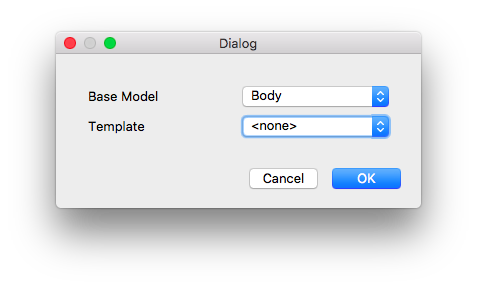
Above: CAM Job creation dialog (pre-1.0 screenshot)
4. This opens the New Job dialog. It lists the document’s solids under Model; keep the Body checked, leave Template empty, check that Document Units shows a per-minute velocity schema (shown in green, introduced in 26.3), and press OK.
Job Setup
5. The Job Edit task panel opens on the Setup tab, and the model view shows the Stock as a wire-frame box surrounding the Body: the Stock group defaults to "Extend model’s bounding box" with Ext. X/Y/Z values. The Alignment and Origin & Orientation groups let you move the model so that its machining origin is in a corner (Set Origin, X=0 / Y=0 / Z=0, Center in Stock).
Job General
6. The General tab (introduced in 26.3) holds the Job label, the list of Models, a Description and the Machine selector. Choosing a Machine (.fcm) determines the post-processor and its output options; press New Machine to open the Machine Editor if none exists. You may leave it empty to use the legacy post-processor selection on the Output tab.
Job Output
7. The Output tab sets the Output file template, the Processor (only used when no Machine is assigned) and its Arguments (mouse over to show tooltips of common arguments), and the Work Coordinate Systems (G54-G59) with Order by and Split Output.
::
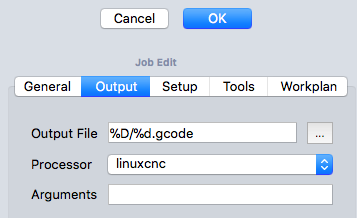
Above: CAM Job Edit dialog with the Output tab selected (pre-1.0 screenshot)
Job Tools
::
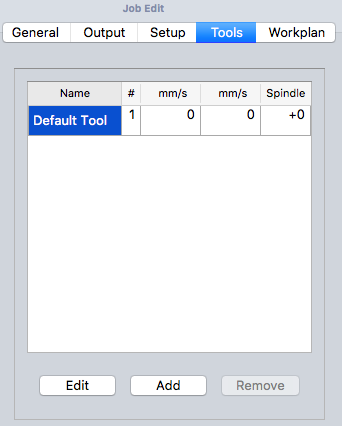
Above: CAM Job Edit dialog with the Tools tab selected (pre-1.0 screenshot)
8. On the Tools tab select the default Tool Controller (TC: 5mm Endmill) and press Edit to open the Tool Controller Editor. (Add opens the Toolbit Selector to create further Tool Controllers from the Tool Library.)
9. Set the Tool Number to match the machine’s tool slot, enter Horizontal and Vertical feed (e.g. 120 mm/min) and a spindle speed (2000 rpm, Forward). The editor also offers Lead-in, Lead-out and Ramp feeds and Horizontal/Vertical rapids. The Feeds and Speeds Wizard (introduced in 26.3) can compute values from the stock material and the Tool Bit.
10. Tool geometry (Diameter, Cutting edge height, Flutes, Length …) is defined on the Tool Bit, not the Tool Controller. Double-click the Tool Bit under the Tool Controller in the tree, or open the Toolbit Library Manager () to edit it in the Toolbit Parameter Editor. The simulator uses the Tool Shape, so no extra angles need to be entered.
11. The values are confirmed with OK
Note: tools are kept in Tool Libraries; use  Add Toolbit (P T) to add library tools to the Job and
  Toolbit Library Manager to create or edit them.
Job Workplan
The Workplan tab initially is shown as empty. It is then populated by the sequence of Job Operations, Supplemental Commands (Comment, Stop, Custom, Probe), and Dressups. The sequence of these items is ordered here.
This tree is shown after the Job’s configuration once the CAM Job is unfolded:
::
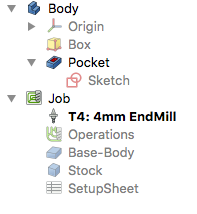
The Toolpath Operations
12. Two operations will be added to generate milling toolpaths for this CAM Job. The Profile operation creates a toolpath around the box and the Pocket Shape operation creates a toolpath for the inner pocket.
13. For now we will keep it simple. With nothing selected, press the  Profile button. The Profile task panel opens; the Operation page shows Cut side (Outside), Direction (CW) and Use Compensation. Press OK to profile the whole model with the default values; a green toolpath appears around the box.
14. Select the bottom face of the pocket and press the  Pocket Shape button. The Pocket Shape panel opens. The default values for Base Geometry, Depths, and Heights are used; on the Operation page set Step over to
 50 % .
::
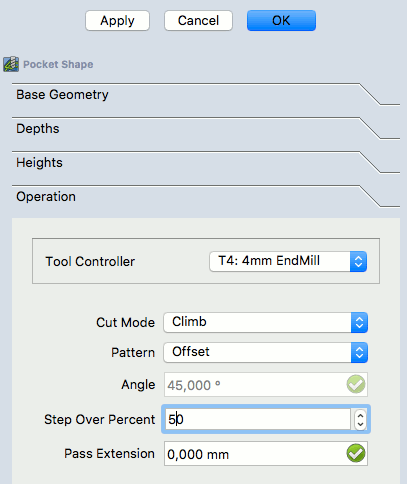
Above: Pocket Shape dialog with the Operation page selected (pre-1.0 screenshot)
15. The Pattern is changed to "Offset" and the Job Operation is confirmed for the pocket configuration with OK
The result is a model with two toolpaths:
::
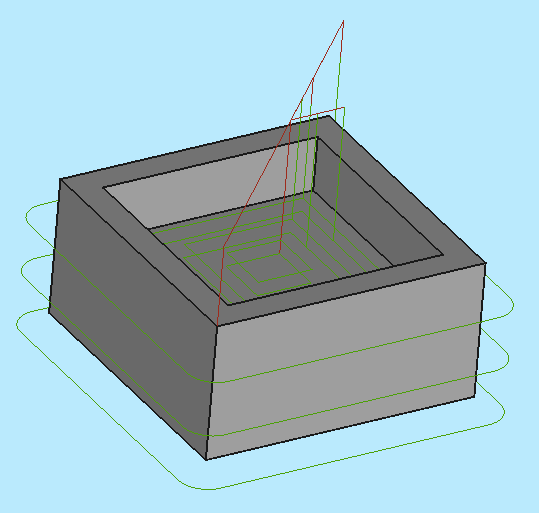
Above: resulting with a model with two toolpaths
Verifying Toolpaths
There are two ways to verify the created toolpaths. The G-Code can be inspected, including highlighting the corresponding toolpath segments. The milling process of the CAM Job can also be simulated to demonstrate the idealized toolpaths, required for the Tool Bit geometries to mill the Stock.
To inspect the G-Code select an operation and use the  Inspect Toolpath tool (P I, also in the tree context menu). Selecting the corresponding G-Code lines within the G-Code Inspection window highlights individual toolpath segments.
::
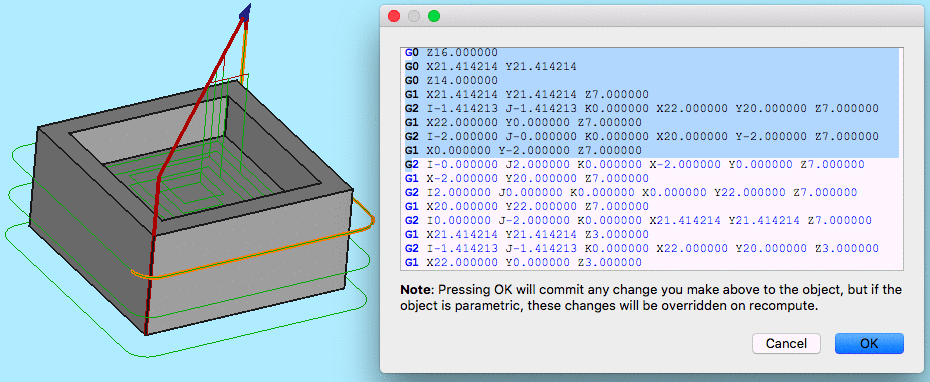
Above: Inspect Toolpath tool opens the G-Code Inspection dialog (pre-1.0 screenshot)
To start the simulation use the  CAM Simulator tool (P N). The simulator opens as its own view (introduced in 26.3); choose the quality, press the
  (Play) button and use the speed buttons.
Press Close to end the simulation. (With the Legacy CAM Simulator, P M, Cancel removes the cut stock and OK keeps it in the document.)
Postprocess the Job
The final step to generate G-Code for the target mill is to postprocess the Job. This outputs the G-Codes to a file that can be uploaded to the target CNC machine controller. To invoke the Postprocessor:
-
Select the Job object in the Tree View
-
Select the
 Post Process tool (P P).
If the Job has a Machine (introduced in 26.3) the Post Processing dialog opens: review the Operations list, press Generate Output on the Output tab to preview the numbered G-code and check the Warnings tab, then Save to Disk. Without a Machine, the post-processor chosen on the Output tab runs and the G-code editor opens for review before saving (when "Show editor before writing G-code" is enabled in the CAM GUI preferences). To post-process only some operations, select them and use Post Process Selected (P O, introduced in 26.3).
::
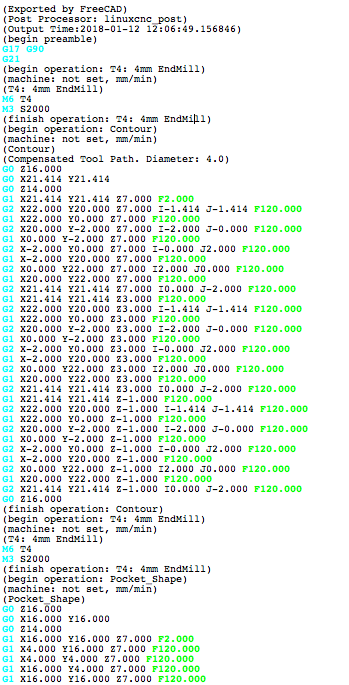
Above: G-Code window allowing inspection of the final output file (pre-1.0 screenshot)