CAM Inspect
 CAM Inspect
- Menu location
-
- Workbenches
- Default shortcut
-
P then I
- Introduced in version
-
-
- See also
Description
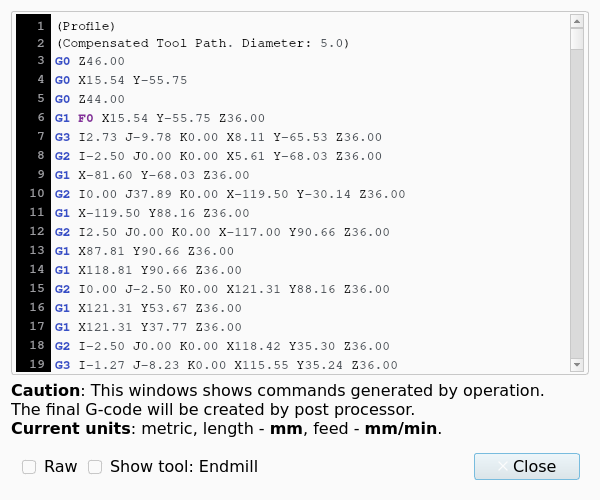
The Inspect Toolpath command opens the CAM Inspect dialog showing the internal G-code of the selected toolpath object in a read-only code viewer with line numbers and G-code syntax highlighting (G/M words, numbers and F feed words). The toolpath has not been post-processed: coordinates are in millimetres and feed rates in mm/s, and a note at the bottom of the dialog reminds of this.
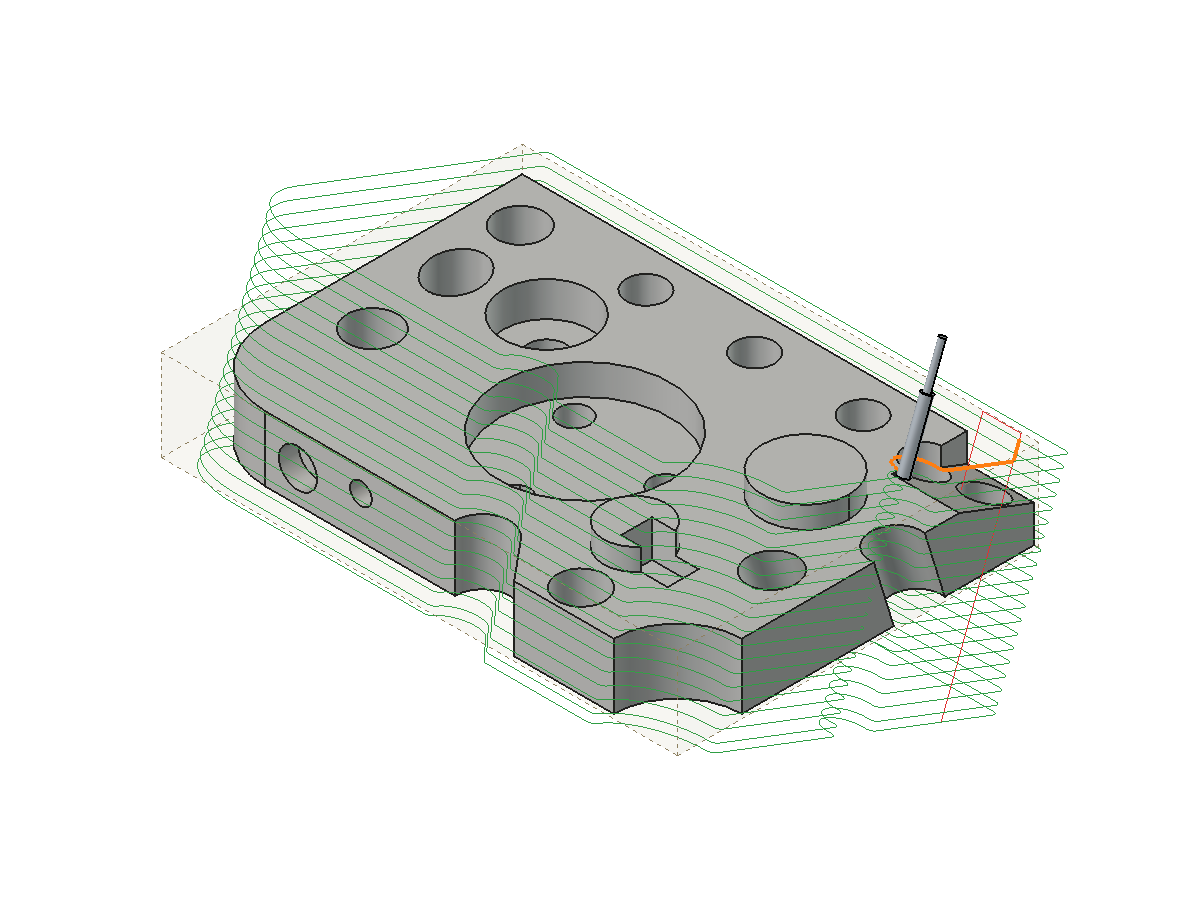
Selecting one or more lines in the viewer highlights the corresponding moves in the 3D View (drawn with the Highlight path color from ) and moves the Tool Bit shape of the Operation’s Tool Controller to the start point of the selection.
introduced in 26.3: The Tool Bit shape in the 3D View points along the Tool Axis of the Operation.
The figure shows the highlighted moves and the Tool Bit shape for an Operation on a tilted Work Plane.
introduced in 26.3: line numbers are shown. For very long toolpaths (more than 1000 lines by default, parameter MaxHighlighterSize) syntax highlighting is switched off.
The figure shows the dialog for a Profile operation.
Usage
-
Select exactly one toolpath object (Operation, dressup, Array, copy or Job) whose toolpath is not empty. Otherwise "Select exactly one path object" is printed in the Report view.
-
There are several ways to invoke the command:
-
Press the
Inspect Toolpath button. -
Select the option from the menu.
-
Select the Inspect Toolpath option from the Tree View context menu (offered when exactly one Operation is selected).
-
Use the keyboard shortcut: P then I.
-
Options
-
The font and the Number/Keyword/Define name colors of the editor window follow the settings from . The 3D highlight color comes from the CAM Colors preference page.
-
The size and position of the dialog are stored in the user parameters.
-
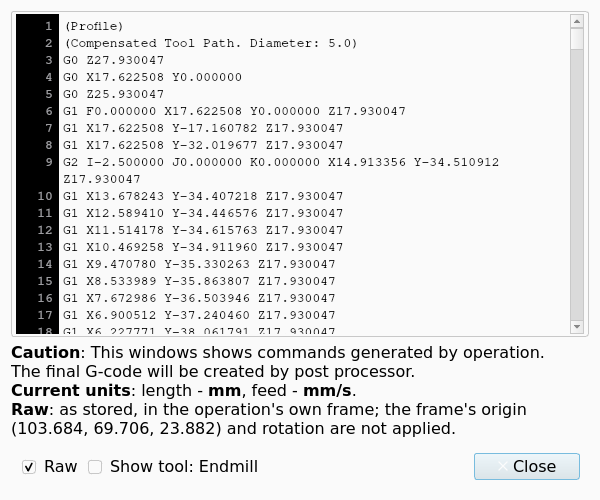
Raw: shows the commands as the Operation stored them. The viewer does not round the values and does not convert the units when Raw is set.
-
introduced in 26.3 The viewer does not apply the Placement of the Operation when Raw is set.
-
introduced in 26.3 When Raw is set and the Placement of the Operation is not the identity, the note in the dialog shows one more line. The line gives the origin of the frame of the Operation. The line says that the viewer does not apply the origin and the rotation of the frame.
The figure shows the dialog with Raw set for an Operation that links to a Work Plane.
Notes
-
For an Operation deactivated with Toggle Operation the viewer only shows
(inactive operation). -
introduced in 26.3 An Operation that links to a Work Plane stores its Toolpath in the frame of the Work Plane. The viewer shows the Toolpath in Job coordinates when Raw is not set. The viewer shows the Toolpath in the frame of the Work Plane when Raw is set.
-
introduced in 26.3 The highlight in the 3D View has the Placement of the Operation. The highlight stays on the Toolpath of an Operation that links to a Work Plane.
-
introduced in 26.3 The position of the Tool Bit shape is the position of the selected line in Job coordinates. The Tool Axis of an Operation that links to a Work Plane is the local +Z of the Work Plane.
Scripting
See also: FreeCAD Scripting Basics.
Example:
import Path.Main.Gui.Inspect
Path.Main.Gui.Inspect.show(FreeCAD.ActiveDocument.Profile)