Post Process
 Post Process
- Menu location
-
; also in the Tree view context menu of a Job or Operation
- Workbenches
- Default shortcut
-
P+P
- Introduced in version
-
-
- See also
-
Post Process Selected, Machine, Machine Configuration, Postprocessor Customization
Description
The Post Process command exports the selected Job to one or more G-code files. A Post-Processor (Post) translates the internal G-code of FreeCAD into the dialect of the control of one machine. FreeCAD’s internal G-code format describes the internal G-code. A Job with a Machine uses machine-based post-processing: the Machine supplies the Post and the output options, and the Post-Processing Dialog opens. A Job without a Machine uses legacy post-processing: the Job’s Post Processor and Arguments properties select and configure the Post. The toolbar button is in the Post process Operations drop-down group, together with  Post Process Selected.
Usage
-
Select the Job, or one of its Operations, in the Tree view.
-
Start the command.
-
Press the
Post Process button in the Post process Operations toolbar drop-down. -
Select .
-
Select Post Process in the context menu of the Job.
-
Press P+P.
-
-
introduced in 26.3: When the Job has a Machine, the Post-Processing Dialog opens. Set the tabs that Options describes.
-
Press Generate Output.
-
Examine the files on the Output tab.
-
Press Save to Disk. The dialog writes each file and closes.
When the Job has no Machine, the command does not open the Post-Processing Dialog:
-
The command uses the Post of the Job. When the Job has none, the command uses the default Post of the preferences.
-
When the Job and the preferences give no Post, a Post Processor dialog lists the enabled Posts. Double-click one Post to select it. When you close this dialog without a selection, the command stops and writes no output.
-
Most legacy Posts show the G-code in an editor, where you can edit the text or cancel. introduced in 26.3: The editor shows line numbers.
-
The command writes the file. The File save policy preference controls the file dialog, as Notes and limitations describes.
Options
introduced in 26.3: The Post-Processing Dialog has the title Post Processing - Job: <name> and five tabs.
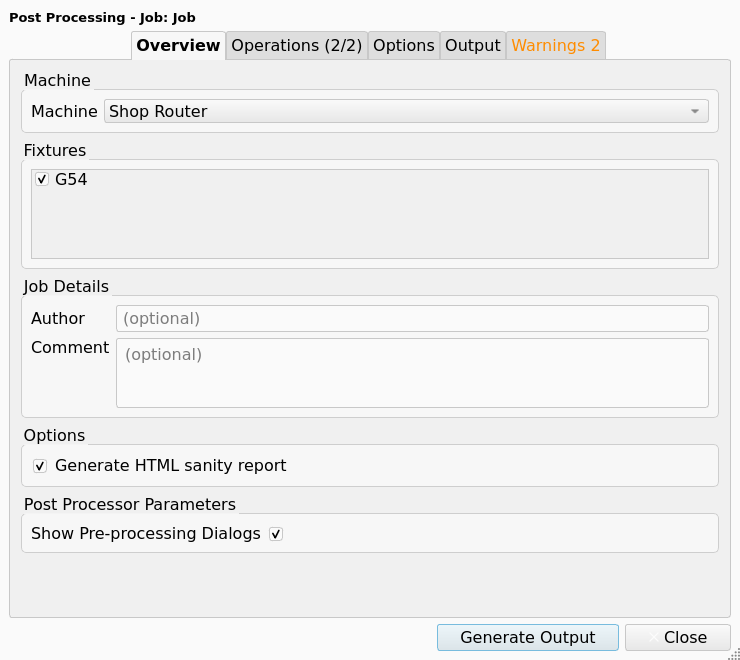
Overview
-
Machine: the Machine for this export. The default is the Machine of the Job. The first entry, "(Legacy post-processor)", selects the legacy Post of the Job.
-
Fixtures: select each Fixture to include. A Fixture is a G54 to G59.9 selection, not the workholding.
-
Job Details: Author and Comment, written into the G-code header.
-
Options: Generate HTML sanity report.
-
Post Processor Parameters: the Post-Processor Properties of the Post that have Run scope. Each value applies to one export and is not stored. Every machine-based Post has Show Pre-processing Dialogs. The
generic_sheet_cuttingPost adds Force Rapid Feeds and Mark Entry Points Only.
The figure shows the Overview tab for a Job with the Machine "Shop Router".
Operations
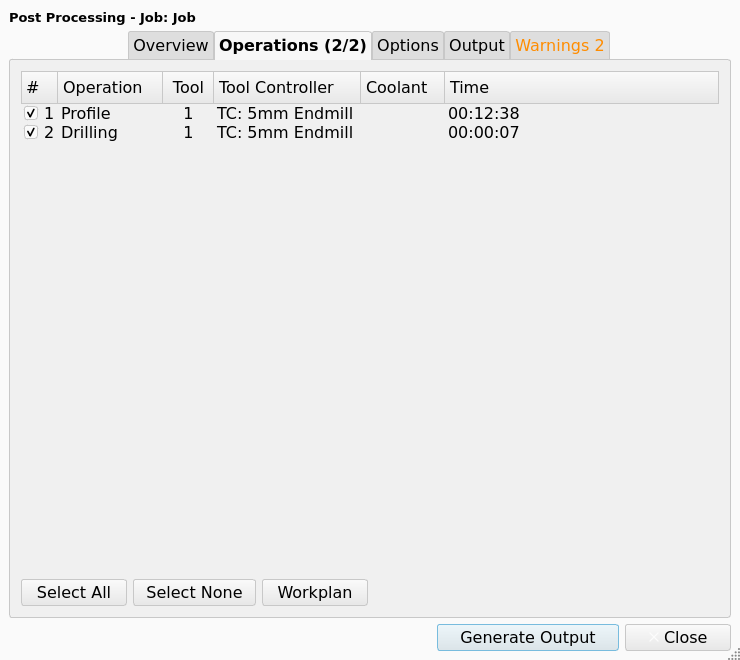
The tab lists the active Operations of the Job. Inactive Operations are not in the list. The list has these columns:
-
#: the position of the Operation in the list, from 1. The checkbox in this column includes the Operation in the export.
-
Operation: the label of the Operation.
-
Tool: the number that the Tool Controller of the Operation gives to its Tool Bit.
-
Tool Controller: the label of the Tool Controller. An Operation without a Tool Controller shows
???. -
Coolant: the coolant mode of the Operation. The cell is empty when the mode is
None. -
Time: the cycle time of the Operation.
The tab has three buttons:
-
Select All and Select None set all checkboxes.
-
Workplan shows the ordered list of the items to post, with their estimated times.
The figure shows the Operations tab for a Job with two Operations.
Options
The tab shows the output options of the Machine: units, header, comments, formatting, precision, duplicates and processing. A change on this tab applies to this export only.
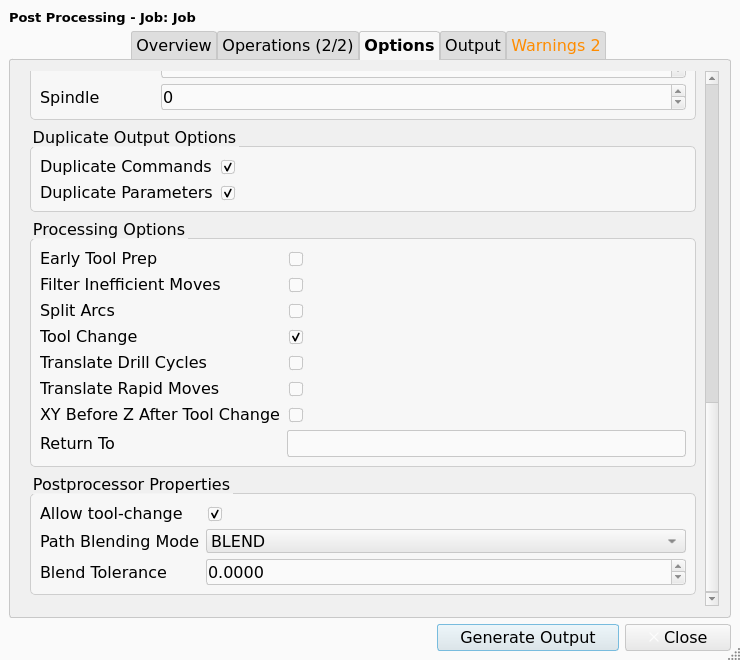
The Postprocessor Properties group shows the Post-Processor Properties of the Post that have Job scope. Each control starts with the value of the Machine, with the overrides of the Job applied. The table gives examples.
| Post | Job-scope properties |
|---|---|
Every machine-based Post |
Allow tool-change |
|
Path Blending Mode, Blend Tolerance |
|
Pierce Delay, Cooling Delay, Marking Delay, Control Method For Cutter, Strip Z Parameters, Strip F Parameters |
|
Program Name, Output BLK FORM |
The figure shows the Postprocessor Properties group for the linuxcnc Post, at the bottom of the Options tab.
The dialog does not show properties that have Machine scope. Edit these properties in the Machine Editor, as Machine describes.
Output
-
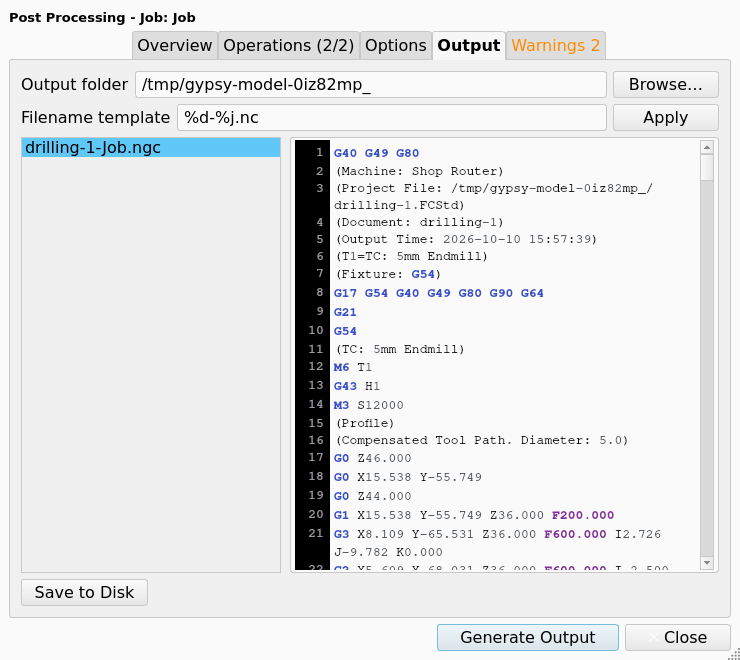
Output folder: the folder for the files. The default is the folder that the output file settings of the Job give. Browse… selects a folder. When the folder in the field does not exist, the folder dialog starts in the folder of the document.
-
Filename template: the file name, with substitutions. The default is the file name part of the Job’s Output File property. Apply gives the new names to the generated files. Notes and limitations lists the substitutions.
-
The list of generated files. The context menu of a file changes its name.
-
The G-code view. You can edit the text.
-
Save to Disk writes each file and closes the dialog.
The figure shows the Output tab after a press of Generate Output.
Warnings
The tab shows the result of the Sanity Check in the columns Severity and Note. The tab label shows the number of findings. Sanity Check describes the checks.
Properties
The Job page describes the Job properties that control the output.
-
Output File: the folder and file name template of the output.
-
introduced in 26.3 Machine: the name of the Machine. Empty selects legacy post-processing.
-
Fixtures: the Fixtures for which the Job writes its program.
-
Order Output By: the order of the output.
-
Split Output: writes one file for each section of the output.
-
LastPostProcessDateandLastPostProcessOutput: hidden. A successful export updates them. The Sanity Check reads them.
The Job’s Post Processor and Arguments properties select and configure the legacy Post. A Job with a Machine ignores these two properties.
introduced in 26.3: The Post Processor Property Overrides property holds the Job overrides of Job-scope Post-Processor Properties.
On the Output tab of the Job task panel, the Processor and Arguments rows are hidden while a Machine is selected. A machine-based Post is not available in the Processor list of the Job. A legacy Post cannot be assigned to a Machine.
Notes and limitations
| Do not use to export G-code. That command writes damaged G-code. |
Functions of a Post-Processor
A Post does these functions for its control:
-
Sets the extension of the output file.
-
Selects the G-code commands that the control accepts. A control usually supports a subset of the G-code commands.
-
Sets the order of the words on a line and the precision of the values.
-
Adds a preamble that sets the units, the plane and the coordinate system.
-
Adds a postamble that parks and stops the machine.
-
Adds tool changes, or suppresses them between Operations that use the same Tool Controller.
-
Sets the format of the feed values and the speed values.
Typical targets are mills, lathes, 3D printers, drag-knife machines, laser machines, engravers and plasma machines.
Settings of the two flows
A legacy Post takes its settings from the Arguments field of the Job, for example --no-header --line-numbers --precision 4. The tooltip of the Arguments field lists the arguments. A machine-based Post takes the same settings from the output options of the Machine (.fcm). Edit them in the Machine Editor, or override them for one export on the Options tab of the Post-Processing Dialog. Machine Configuration gives the priority of the value sources.
Machine-based output starts with a comment header. The header can include the name of the program that made the file, the Machine name, the Post, the project file and the document name. The header can also include the description, the author, the date, the units, the Tool Bit list and the Fixture list. The Header Options of the Machine switch each item off.
Output file name
In legacy post-processing, the file name comes from the Job’s Output File property. When that property is empty, the name comes from the preference , Default path. When the two are empty, the file gets the document name and goes into the folder of the document. A name without an extension gets .nc. A machine-based Post applies its own extension, for example .ngc for linuxcnc and .h for heidenhain.
The folder and the file name accept these substitutions:
| Substitution | Value |
|---|---|
|
The folder of the document |
|
The document name |
|
The macro folder |
|
The Job label |
|
The sequence number |
|
The tool number. Split output only. |
|
The Tool Controller label. Split output only. |
|
The Fixture. Split output only. |
|
The Operation label. Split output only. |
The substitutions %T, %t, %W and %O name one section of a split output. When the template has none of them, the file name of each section gets the suffix -<section>. When the template has one of them, the suffix is not added. When the Job does not split its output, these four substitutions are ignored and the Report view shows a warning.
The File save policy preference has four values:
-
Open file dialog: always asks for the file. -
Open file dialog on conflict: asks when the file exists. -
Overwrite existing file. -
Append Unique ID on conflict: adds-1to the name.
The policy applies to legacy post-processing. The Post-Processing Dialog always writes the files in the list on its Output tab.
The preference page also enables or disables the installed Posts. The page sets the default Post, the default arguments and the default output folder.
Included Post-Processors
The included Posts are in <FreeCAD>/Mod/CAM/Path/Post/scripts. The Post name is the file name without _post.py. Post-Processor Genealogy lists the Post classes and the script Posts.
-
introduced in 26.3 Machine-based, used through a Machine:
centroid,fanuc,generic,generic_sheet_cutting,heidenhain,linuxcnc,mach3_mach4,marlin,opensbp,smoothie. -
Class-based, available as legacy Posts in the Job:
grbl,masso_g3,svg,test. ThegrblPost writes bCNC header blocks with the argument--bcnc. -
Legacy Posts with arguments:
centroid_legacy,dxf,dynapath_legacy,dynapath_4060_legacy,estlcam_legacy,fablin_legacy,fangling_legacy,fanuc_legacy,grbl_legacy,heidenhain_legacy,jtech_legacy(laser),KineticNCBeamicon2_legacy,linuxcnc_legacy,mach3_mach4_legacy,marlin_legacy,nccad_legacy,opensbp_legacy,philips_legacy,rml_legacy,rrf_legacy,snapmaker_legacy,uccnc_legacy,wedm_legacy. -
Pre-processors that import G-code:
gcode_pre,opensbp_pre,slic3r_pre.
More Posts come from the macro folder and from the CAM file path preference. An installed add-on whose package.xml declares a Post-Processor content item also supplies Posts, for example the FreeCAD/Machines add-on. Postprocessor Customization describes how to change a Post or write one. The included Posts are also usable as a start for a new Post.
The table gives notes on individual Posts.
| Post | Notes |
|---|---|
|
For plasma, laser and waterjet machines. Control Method For Cutter has the values |
|
Writes a Klartext program with block numbers, not G-code. |
|
Writes the |
|
Writes tilted Work Planes with the TWP Rotation Strategy only. linuxcnc Post-Processor describes the output. |
|
Does not accept the bare |
Drill cycles and tapping
A machine-based Post writes the F word of a tapping cycle (G84 or G74) as the thread pitch multiplied by the Spindle Speed. The export stops with an error when the tapping cycle has no S word, or when the S value is not more than 0. A Post can replace this behaviour:
-
linuxcncwrites a tapping cycle that is marked rigid asG33.1with the pitch in the K word. -
heidenhainwrites the pitch into its tapping cycle.
A legacy Post writes G98 or G99 before each group of canned cycles and G80 after the group. The retract mode thus follows the Keep Tool Down property of the Drilling Operation. This applies to linuxcnc_legacy, grbl_legacy, marlin_legacy, estlcam_legacy, rrf_legacy, fanuc_legacy, uccnc_legacy, dynapath_legacy, dynapath_4060_legacy, mach3_mach4_legacy, centroid_legacy and KineticNCBeamicon2_legacy. The heidenhain_legacy Post does not write the retract mode.
Work Planes
introduced in 26.3: An Operation stores its Toolpath in the frame of its Work Plane. The Post puts the Toolpath into the coordinates that the Machine runs.
-
A Work Plane parallel to the table posts on each Machine and with each Post, legacy Posts included.
-
An Operation on a tilted Work Plane needs a Machine with rotary axes, a Rotation Strategy, and a Post that can emit that strategy. If one is absent, the export stops and the message names the Operation and the Machine. Machine lists the conditions.
-
The
linuxcncPost emits only the TWP Rotation Strategy. When the Rotation Strategy of the Machine is DWO, the export of an Operation on a tilted Work Plane stops with an error. linuxcnc Post-Processor describes the tilted Work Plane output of thelinuxcncPost. -
A Work Plane that the Machine cannot index to stops the export. The message names the Work Plane and the rotary limits of the Machine.
-
A legacy Post stops the export for each Operation on a tilted Work Plane. Select a Machine with a machine-based Post for such an Operation.
-
Only the Operations in the export are examined. An inactive Operation, or an Operation that is not selected, does not stop the export.
-
A Work Plane can name a Fixture. A machine-based Post selects that Fixture before the Operations on the Work Plane and selects the Fixture of the Job again afterwards. A Fixture value that is not a G54 to G59.9 word, or G54.1 Pn, stops the export.
The Sanity Check of a machine-based Post gives a WARNING Squawk in these conditions:
-
The rotary axes move between Operations and the Pre-Rotary Move property of the Machine is empty.
-
A Work Plane names a Fixture that is not a G54 to G59.9 word or G54.1 Pn.
-
A Work Plane names a Fixture that is also in the Fixtures list of the Job, and that list has more than one Fixture.
