CAM Deburr
 CAM Deburr
- Menu location
-
- Workbenches
- Default shortcut
-
None
- Introduced in version
-
0.18
- See also
-
None
Description
The CAM Deburr command creates an Operation that runs a chamfer or V-bit cutter along selected edges or around selected faces to break the edge. The command tooltip reads "Creates a Deburr toolpath along Edges or around Faces". Base Geometry must belong to a Model of the Job.
With a Tool Bit that has a Cutting Edge Angle (chamfer or v-bit Tool Shape) the cut depth is Width / tan(angle / 2) plus Extra Depth, and the Toolpath is offset by the tip radius (Tip Diameter or Flat Radius). With an end mill (no angle, or 180°) the Toolpath is offset inside the edge by Width and the depth equals Extra Depth. Messages in the Report view state which assumption was made.
Options
After selecting the geometry in the Base Geometry section of the task panel you can press Apply to see the Toolpath as defined by the default options.
The Heights section holds Clearance, Retract and Step down, together with the Linking settings Collision Avoidance Strategy and Collision Clearance (introduced in 26.3). Start and Final depths are not editable for Deburr; the cut depth follows from the chamfer parameters.
The Tool Controller section holds Tool controller (select the Tool Controller to use) and Coolant (None, Flood or Mist).
In the Operation section you can specify the following, illustrated by the chamfer diagram:
-
Direction: The direction in which the profile is performed,
CW(clockwise) orCCW(counter-clockwise). -
W =: Width of chamfer cut.
-
h =: Extra depth of tool immersion. It’s a safety feature: if the tip gets above the edge it won’t cut anymore.
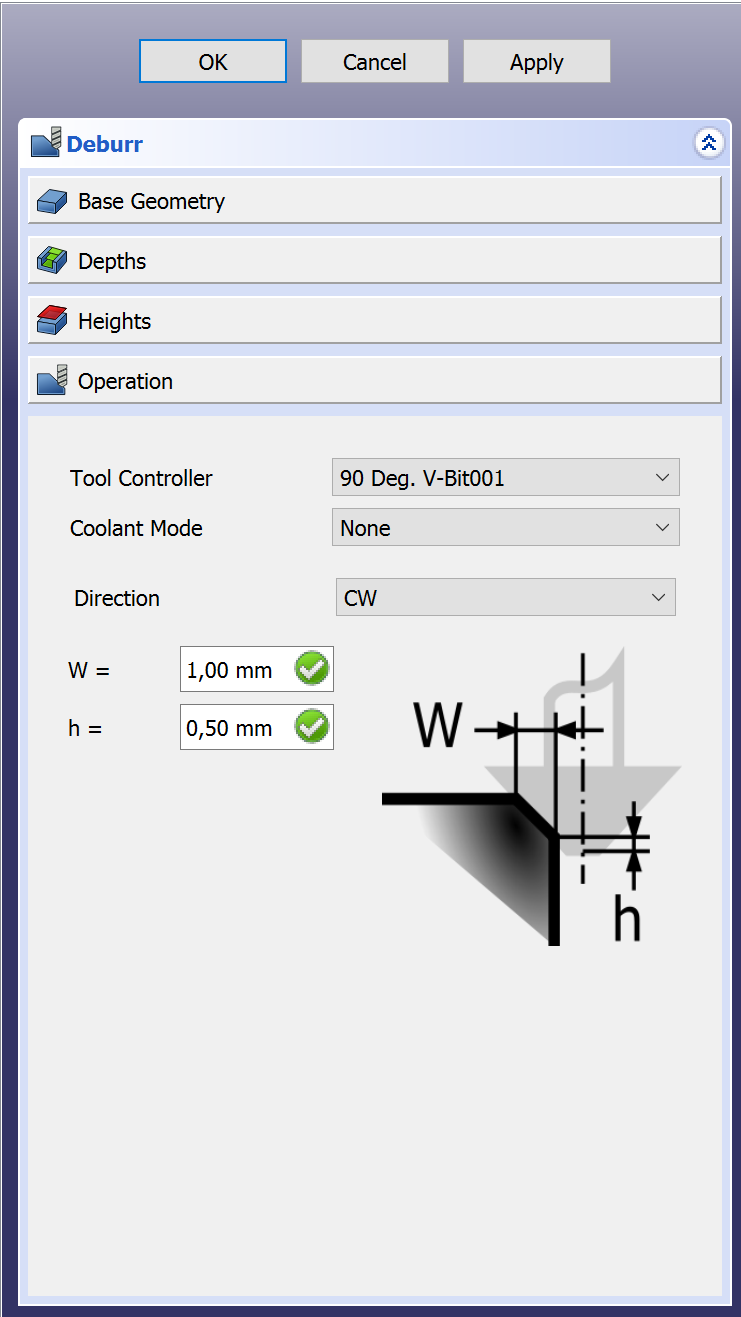
Above: the Operation section (screenshot predates the current version; the Join Round/Miter buttons shown are hidden on current versions)
Properties
Data
-
Placement:
-
Label: User name of the object (UTF-8)
-
Direction: Direction of toolpath,
CW(default) orCCW. -
Entry Point: The segment where the toolpath starts (index of the edge of each wire at which cutting begins). Default 0; negative values are reset to 0.
-
Extra Depth: The additional depth of the toolpath (h = in the task panel). Default: 0.5 mm.
-
Join (hidden): How to join chamfer segments,
Round(default) orMiter. -
Side (hidden): Side of base object,
OutsideorInside. Computed by the operation; set toInsidefor angled faces whose top radius is larger than the bottom radius. -
Width: The desired width of the chamfer (W = in the task panel). Default: 1 mm.
-
Clearance Height: The height needed to clear clamps and obstructions (set by default to
OpStockZMax + SetupSheet.ClearanceHeightOffset). -
Safe Height: The height above which rapid motions are allowed (set to
OpStockZMax + SetupSheet.SafeHeightOffset). -
Start Depth (read-only): internal value used for derived expressions; the cut depth comes from Width and Extra Depth.
-
Step Down: Incremental Step Down of Tool, default 0 mm (single pass).
introduced in 26.3
-
Collision Avoidance Strategy:
Clearance Height,Retract Height,Line of Sight,Tool Diameter,Tool Shape. Governs the moves between separate wires. -
Collision Clearance: Distance for collision detection.
-
Op Stock ZMax: The maximum Z value of the stock.
-
Op Stock ZMin: The minimum Z value of the stock.
-
Op Tool Diameter: The diameter of the tool.
-
Active: Make
false, to prevent operation from generating code. -
Base: The base geometry for this operation, edges or a face.
-
Comment: An optional comment for this operation.
-
Coolant Mode: Coolant mode for this operation.
-
Cycle Time: Estimated cycle time for this operation.
-
Tool Controller: The Tool Controller that will be used to calculate the Toolpath.
-
User Label: User assigned label.
-
Workplane: introduced in 26.3 The link to the Work Plane that the Operation works in. An Operation with no link works in the XY of the Job.
Notes
-
Only edges and faces of the Job’s Models are accepted as Base Geometry; whole 2D objects cannot be added.
-
introduced in 26.3: Wires are discretised as needed before offsetting so that complex edges no longer fail. Angled faces are handled by projecting the lower edge to the height of the upper edge. The segmentation precision follows the Job’s Geometry Tolerance property (there is no per-operation tolerance property). Moves between wires use the Linking generator, so the tool retracts only to Safe Height when the move is clear.
Scripting
See also: FreeCAD Scripting Basics.
Example:
import FreeCAD
import Path.Op.Deburr as PathDeburr

job = FreeCAD.ActiveDocument.getObject('Job')
op = PathDeburr.Create('Deburr', parentJob=job)
model = job.Model.Group[0]
op.Base = [(model, ['Edge1', 'Edge2'])]
op.Width = '1 mm'
op.ExtraDepth = '0.5 mm'
op.Direction = 'CW'
FreeCAD.ActiveDocument.recompute()