CAM Slot
 CAM Slot
- Menu location
-
- Workbenches
- Default shortcut
-
None
- Introduced in version
-
0.19
- See also
-
None
Description
The CAM Slot command creates a single horizontal slot between two points. Points can be specified through selected geometry or custom points.
Allowed selection, from one Model only:
-
two vertexes.
-
one or two edges.
-
one horizontal or vertical face. A single horizontal face must have exactly four edges.
-
one or two vertical faces.
-
nothing, to use two custom points.
The CAM Slot object is made to be part of a  CAM Job.
Usage
-
Select the reference geometry on the model:
-
one or two faces or edges.
-
two vertices.
-
nothing to use two custom points entered in the Property View of the Data tab: Custom Point1 and Custom Point2.
-
-
Invoke the Slot command using several methods:
-
Pressing the
Slot button on the New Operations toolbar. -
Using the entry from the top menu.
-
-
Adjust the desired properties. Descriptions of available properties are found below.
Usage Notes
-
All slots:
-
Both the beginning and end of a slot Toolpath can be extended or shortened. Use the Extend Path Start and Extend Path End properties.
-
Toggle the Reverse Direction property to reverse the direction of the cut.
-
introduced in 26.3: The Cut Pattern property selects how successive step-down layers are cut:
Bidirectionalcuts each layer in the opposite direction of the previous one without a retract;Directionalretracts to Safe Height and returns to the start so every layer is cut in the same direction. Slot operations saved before 26.3 are migrated automatically:LinebecomesDirectional,ZigZagbecomesBidirectional. -
introduced in 26.3: The Toolpath begins with a rapid from Clearance Height to Safe Height before the first plunge. If a slot cannot be built from the selection, the Toolpath is cleared and an error is reported in the Report view instead of leaving a stale Toolpath.
-
introduced in 26.3: With two parallel edges or two vertical faces selected,
Start to Endorientation builds the slot centred between them using the longer feature’s length, andPerpendicularbuilds a slot across them. Straight edges of any curve type (for example a straight B-spline) are accepted; non-horizontal arcs and circles are rejected with the message "Can not create slot from not horizontal circle".
-
-
Linear slots:
-
Currently there is no capability to offset linear slots laterally (parallel to the direction of travel). Example: Say you have a Tool Bit diameter smaller than the width of the slot area you are clearing. Current behavior of this operation is to create a Toolpath on a plane down the center-line of the designated slot, which will result in the slot volume not being fully cleared. Some users would want the operation to create multiple passes that are offset laterally to clear the entire slot area; this is not directly possible, though it can be achieved through using "Custom Points", see "Vertical face milling" below. Alternatively use the Pocket operation for such clearing.
-
Create a custom linear slot using the Custom Point1 and Custom Point2 properties with no geometry selection. Example: Initiate a Slot operation in the GUI and click 'OK' to save. Now locate and edit the Custom Point1 and Custom Point2 properties in the Data tab of the newly created Slot operation. Recompute the operation to update the Toolpath.
-
-
Vertical face milling:
-
Most of the CAM operations cannot make a Toolpath on a single vertical plane since the projection onto the horizontal plane has zero area (an internal limitation). The Slot operation makes this possible by selecting "Custom points" which define a line parallel to the vertical plane and suitable Depth parameters.
-
-
Arc/Circular slots:
-
Creating arc/circular slots
-
You will need to select one bottom arc of the slot. This will produce a Toolpath directly on the arc edge you selected.
-
You will then need to edit the `Extend Radius` property in the Data tab of the operation. Using the expression editor, set it to either OpToolDiameter / 2.0 or the negative version OpToolDiameter / -2.0 as needed, depending on whether you selected the inside or outside arc of the slot.
-
Recompute the operation.
-
Keep in mind that if the Tool Bit diameter is not equal to the slot width, the Toolpath will not be in the correct location. In this case, adjust the value in the `Extend Radius` property mentioned above.
-
-
Currently users are unable to create a custom arc/circular slot. A third Custom Center property will need to be added, along with additional modifications to the code base.
-
Properties
Note: Not all of these Properties are available in the Task Window Editor. Some are only accessible in the Data tab of the Properties View panel for this Operation.
Note: It is suggested that you do not edit the Placement property of path operations. Rather, move or rotate the CAM Job model as needed.
-
Placement: Overall placement[position and rotation] of the object - with respect to the origin (or origin of parent object container)
-
Angle: Angle in degrees applied to rotation of the object around Axis property value
-
Axis: Axis (one or multiple) around which to rotate the object, set in sub-properties: X, Y, Z
-
X: X-axis value
-
Y: Y-axis value
-
Z: Z-axis value
-
-
Position: Position of the object, set in sub-properties: X, Y, Z - with respect to the origin (or origin of parent object container)
-
X: X-distance value
-
Y: Y-distance value
-
Z: Z-distance value
-
-
-
Label: User-provided name of the object (UTF-8)
-
Show Temp Objects: Show the temporary toolpath construction objects when module is in DEBUG mode. Hidden unless the module log level is DEBUG.
-
Clearance Height: The height needed to clear clamps and obstructions
-
Final Depth: Final Depth of Tool- lowest value in Z
-
Safe Height: Rapid Safety Height between locations. Shown as Retract in the task panel.
-
Start Depth: Starting depth of Tool - first cut depth in Z
-
Step Down: Incremental step down of Tool during operation
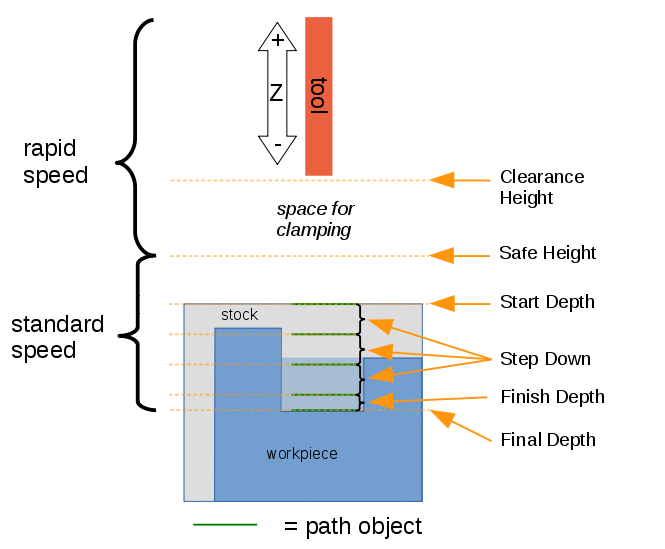
Visual reference for Depth properties (settings)
-
Op Final Depth: Holds the calculated value for the FinalDepth. Read-only.
-
Op Start Depth: Holds the calculated value for the StartDepth. Read-only.
-
Op Stock ZMax: Holds the max Z value of Stock. Read-only.
-
Op Stock ZMin: Holds the min Z value of Stock. Read-only.
-
Op Tool Diameter: Holds the diameter of the tool. Read-only.
-
Active: Make False, to prevent operation from generating code
-
Base: The base geometry for this operation
-
Comment: An optional comment for this Operation
-
Coolant Mode: The coolant mode for this operation.
-
Cycle Time: The cycle time estimation for this operation.
-
Tool Controller: Defines the Tool Controller used in the Operation
-
User Label: User assigned label
-
Workplane: introduced in 26.3 The link to the Work Plane that the Operation works in. An Operation with no link works in the XY of the Job.
-
Custom Point1: Enter custom start point for slot toolpath. Default: (0, 0, 0). Used, together with Custom Point2, when Base Geometry is empty. The two points must differ and share the same Z value; otherwise a warning is printed and no Toolpath is generated.
-
Custom Point2: Enter custom end point for slot toolpath. Default: (0, 0, 0).
-
Cut Pattern (introduced in 26.3): Set the cut pattern for the operation. Values:
Directional(every layer cut in the same direction, retract between layers) orBidirectional(alternate direction each layer, no retract). Default:Bidirectional. -
Extend Path End: Positive extends the end of the toolpath, negative shortens. Default: 0.
-
Extend Path Start: Positive extends the beginning of the toolpath, negative shortens. Default: 0.
-
Extend Radius: For arcs/circular edges, offset the radius for the toolpath. Default: 0. Hidden when two features are selected (it only applies to a single arc or circle).
-
Path Orientation: Choose the toolpath orientation with regard to the feature(s) selected. Values:
Start to End(default) orPerpendicular. -
Reference1: Choose what point to use on the first selected feature. Values:
Center of Mass(default),Center of Bounding Box,Lowest Point,Highest Point,Long Edge,Short Edge,Vertex. Only the values applicable to the selected feature type are offered. Hidden unless Base Geometry contains one or two features. -
Reference2: Choose what point to use on the second selected feature. Values:
Center of Mass(default),Center of Bounding Box,Lowest Point,Highest Point,Vertex. Hidden unless two features are selected. -
Reverse Direction: Enable to reverse the cut direction of the slot toolpath. Default: false.
-
Start Point: The custom start point for the toolpath of this operation. When Use Start Point is true a rapid to this X/Y at Clearance Height is inserted before the slot. It can also be set with the context-menu command Start Point Selection.
-
X: X-distance value
-
Y: Y-distance value
-
Z: Z-distance value
-
-
Use Start Point: Make True, if specifying a Start Point.
Tasks Window Editor Layout
Descriptions for the settings are provided in the Properties list above.
This section is simply a layout map of the settings in the window editor for the Operation.
Base Geometry
-
Add: Add selected features to the list of base geometries for this operation.
-
Remove: Remove the selected list items from the list of base geometries.
-
Clear: Clears list of base geometries.
-
Import: A combo box listing the operations of the current Job that have Base Geometry, with an Import button that copies the Base Geometry of the chosen operation.
Heights
-
Clearance
-
Retract (the Safe Height property)
-
Start (Start Depth)
-
Step down
-
Final (Final Depth)
Tool Controller
-
Tool controller: The Tool Controller to be used for this operation.
-
Coolant: Coolant mode for this operation.
Operation
-
Start feature reference and End Feature Reference: Choose what point to use on the first and second selected feature. The labels are rewritten at run time to match the selection, for example "Reference: Edge1", "Start Reference: Edge1", "End Reference: Edge2". When Base Geometry is empty these widgets are replaced by the message "No base geometry selected" / "Currently using custom point inputs available in the property view of the data tab".
-
Extend path start: Positive extends the beginning of the toolpath, negative shortens.
-
Extend Path End: Positive extends the end of the toolpath, negative shortens.
-
Layer mode (sets the Cut Pattern property; introduced in 26.3):
DirectionalorBidirectional. -
Path orientation:
Start to endorPerpendicular. -
Reverse cut direction: Enable to reverse the cut direction of the slot toolpath.
Scripting
See also: FreeCAD Scripting Basics.
Example:
import FreeCAD
import Path.Op.Slot as PathSlot

job = FreeCAD.ActiveDocument.getObject('Job')
op = PathSlot.Create('Slot', parentJob=job)
op.CustomPoint1 = FreeCAD.Vector(0, 0, 0)
op.CustomPoint2 = FreeCAD.Vector(50, 0, 0)
op.CutPattern = 'Bidirectional'
FreeCAD.ActiveDocument.recompute()