CAM Profile
 CAM Profile
- Menu location
-
- Workbenches
- Default shortcut
-
None
- Introduced in version
-
0.19
- See also
-
None
Description
The CAM Profile command creates a contour Operation based on selected features of the model. It is found on the New Operations toolbar and in the CAM menu; its tooltip reads "Profile entire model, selected face(s) or selected edge(s)". The command was introduced in version 0.19 and offers three operations that were handled by separate commands in previous versions.
All operations create objects that are made to be part of a  CAM Job.
These are the available operations:
Contour operation
A Contour operation is the default. It creates a simple external contour cut of complex 3D  Part-based objects. The entire Job Model serves as the input for the Operation, regardless of whether any Base Geometry is selected when the Contour command is invoked.
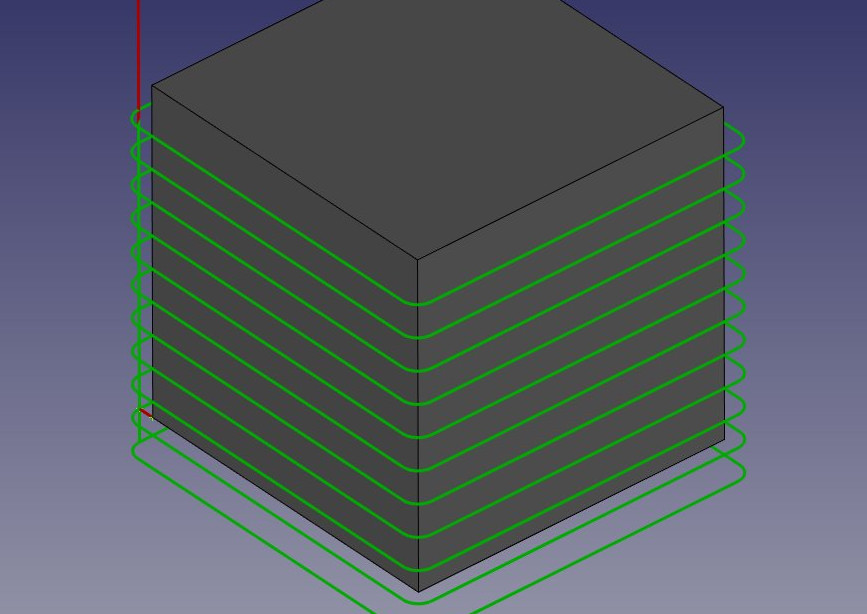
Usage
-
There are several ways to invoke the command:
-
Press the
Profile button on the New Operations toolbar. -
Select the option from the menu.
-
-
The task panel has four tabs: Base Geometry, Heights, Tool Controller and Operation. introduced in 26.3: the Tool Controller and Coolant mode selectors are on the Tool Controller tab, which also lets you edit the selected Tool Controller’s feeds and speeds in place.
-
Activate the Base Geometry section by clicking its tab, and select features from the Job Model.
-
If no features are selected, the command defaults to a Contour operation, contouring the entire model.
-
If faces are selected, then the result is a Profile Face operation.
-
If edges are selected, then the result is a Profile Edges operation.
NOTE: This operation has received improvements to allow functionality on some open-edge (non-loop) selections. See the Usage Notes section below for additional information on best practice for profiling open-edges.
-
-
Activate the Operation section by clicking on its tab, and adjust the operation’s settings as desired.
-
Optionally press the Apply button to preview the operation with the current settings.
-
Click the OK button or the Cancel button to create or cancel the operation.
Important Note: CAM Profile doesn’t take care of other details of the object. You have to adjust the properties, especially the final depth, carefully, a mistake might destroy your work piece!
To use a custom start point, check Use start point on the Operation tab. introduced in 26.3: click a point on the model in the 3D view, then press the Set picked point as start point button to copy the picked coordinates into Start Point. The point can also be edited in the Property View or set with the Start Point Selection context menu command.
introduced in 1.1: Set Number of passes greater than 1 and a non-zero Pass stepover to cut the profile in several radial passes; each extra pass is offset outward by the stepover distance.
Make additional adjustments to the operation by modifying the operation’s properties in the Data tab of the Property View. Advanced properties will be located here, if any.
Usage Notes
-
The
Profile operation is capable of profiling open-edges (one or more continuous edges that do not form a loop as seen from the Top View)-
It is best to select the top edges (highest edges) for the selection. After doing so, you will need to manually set the Final Depth for the operation. Selection of bottom edges only is unpredictable and will likely return undesirable Toolpaths in many situations; however, it will return correct Toolpaths in some situations.
-
Selected edges must form a continual edge as viewed from the Top View. Selected top edges may have differing heights, so long as they connect at a common (X, Y) coordinate - differing Z-heights are acceptable in some** cases.
**In certain cases, the user will need to include in their selection the straight vertical connecting edge between two adjacent edges of different heights that share a common (X, Y) coordinate. -
Because top edges are selected, the Final Depth for the operation will need to be set manually.
-
When profiling open edges the Side (Cut side) property remains visible, but the Toolpath follows the selected edges on the compensated side; verify the result in the 3D view.
-
-
When profiling the entire model (a complete contour of the model) the Side or Cut side property is set to Outside by default and is hidden, since only the outside can be contoured.
Properties
Note: Not all of these Properties are available in the Task Window Editor. Some are only accessible in the Data tab of the Properties View panel for this Operation.
|
Base
Placement is read-only. The Operation sets Placement when it calculates the Toolpath.
|
-
Placement: Overall placement[position and rotation] of the object - with respect to the origin (or origin of parent object container)
-
Angle: Angle in degrees applied to rotation of the object around Axis property value
-
Axis: Axis (one or multiple) around which to rotate the object, set in sub-properties: X, Y, Z
-
X: X-axis value
-
Y: Y-axis value
-
Z: Z-axis value
-
-
Position: Position of the object, set in sub-properties: X, Y, Z - with respect to the origin (or origin of parent object container)
-
X: X-distance value
-
Y: Y-distance value
-
Z: Z-distance value
-
-
-
Label: User-provided name of the object (UTF-8)
-
Clearance Height: The height needed to clear clamps and obstructions
-
Final Depth: Final Depth of Tool Bit - lowest value in Z. User must define it.
-
Safe Height: (Retract in the task panel) The height above which rapid moves are allowed between locations.
-
Start Depth: Starting depth of Tool Bit - first cut depth in Z. User must define it.
-
Step Down: Incremental step down of Tool Bit during operation
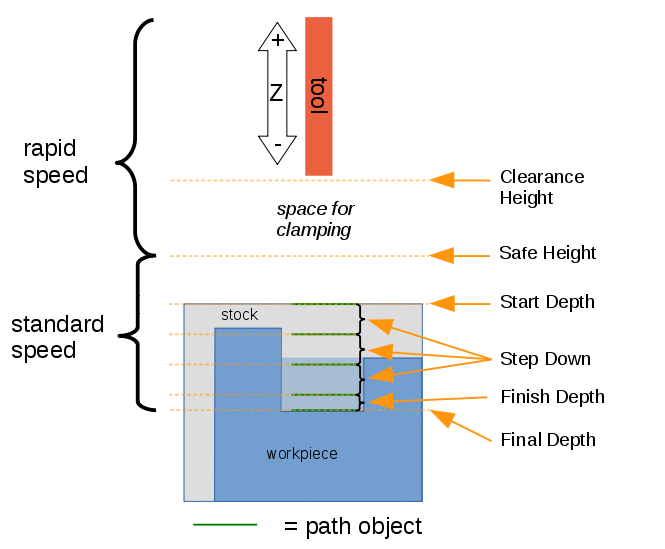
Visual reference for Depth properties (settings)
-
Active: make False, to prevent operation from generating code
-
Base: The base geometry for this operation
-
Block Delete: introduced in 26.3 Enable the Post-Processor to add block delete commands
-
Comment: An optional comment for this Operation
-
Coolant Mode: The coolant mode for this operation:
None,FloodorMist -
Cycle Time: (read-only) The cycle time estimation for this operation.
-
Sorting Mode: introduced in 26.3 Order processing of the shapes.
Automaticuses a nearest-neighbour algorithm;Manualuses the order in which the shapes were selected. Only visible when Handle Multiple Features isIndividually. -
Split Arcs: Split arcs into discrete segments
-
Tool Controller: Defines the Tool Controller used in the Operation
-
User Label: User assigned label
-
Workplane: introduced in 26.3 The link to the Work Plane that the Operation works in. An Operation with no link works in the XY of the Job.
These read-only properties hold values calculated by the operation. They are useful as sources for expressions.
-
Op Start Depth, Op Final Depth: the calculated default depths
-
Op Tool Diameter: the diameter of the Tool Bit
-
Op Stock ZMax, Op Stock ZMin: the Z extent of the Stock
-
Direction: The direction the Toolpath goes around the part,
CW(default) orCCW. -
Handle Multiple Features: Choose how to process multiple Base Geometry features.
Individually(default) processes each feature separately.Collectivelycombines compatible features before generating the Toolpath. Sorting Mode and Use Longest Edge are only available withIndividually. introduced in 26.3:Collectivelycombines all shapes of the same kind (perimeters, holes, open edges) into one compound before generating the Toolpath. -
Join Type: (hidden) Controls how the Tool Bit moves around corners:
Round(default),SquareorMiter. -
Miter Limit: (hidden) Maximum distance before a miter joint is truncated (default 0.1).
-
Num Passes: introduced in 1.1 The number of passes to do (1 to 99999, default 1). If more than one, requires a non-zero value for Stepover. Shown as Number of passes in the task panel.
-
Stepover: introduced in 1.1 If doing multiple passes, the extra offset of each additional pass. Hidden when Num Passes is 1; shown as Pass stepover in the task panel.
-
Offset Extra: Set how much stock to leave on the walls for the operation. Shown as Radial stock to leave in the task panel.
-
Process Circles: Check if you want this Profile Operation to also be applied to cylindrical holes, which normally get drilled. Only shown when faces are selected as Base Geometry.
-
Process Holes: Check if this Profile Operation should also process holes in the base geometry. Note that this does not include cylindrical holes. Only shown when faces are selected as Base Geometry.
-
Process Perimeter: (default checked) Check if this Profile Operation should also process the outside perimeter of the base geometry shapes. Only shown when faces are selected as Base Geometry.
-
Retract Threshold: introduced in 26.3 Repositioning moves shorter than this distance are made without retracting to Safe Height. A value of
0disables this behavior. -
Side: (Cut side in the task panel) Side of the edge the Tool Bit should cut,
Outside(default) orInside. Hidden when Use Comp is off or when the whole model is contoured. -
Use Comp: (Use Compensation) If checked (default), the Toolpath is offset by the Tool Bit radius on the Side selected; otherwise the Tool Bit centre follows the geometry.
-
Start Point: The custom start point for the Toolpath of this operation.
-
X: x distance value
-
Y: y distance value
-
Z: z distance value
-
-
Use Start Point: Make True, if manually specifying a Start Point. Set the start point in the property data Start Point field or pick it in the 3D view.
-
Use Longest Edge: introduced in 26.3 Start the profile at the middle of the longest edge instead of the default start vertex. Only available when Handle Multiple Features is
Individuallyand Use Start Point is unchecked.
Tasks Window Editor Layout
Descriptions for the settings are provided in the Properties list above. This section is simply a layout map of the settings in the window editor for the Operation.
Base Geometry
-
Add: Adds selected element(s) which should be the base(s) for the Toolpath(s)
-
Remove: Remove the selected item(s) in the Base Geometry list
-
Clear: Clear all items in the Base Geometry list
-
The drop-down and Import button copy the Base Geometry of another operation in the Job.
Heights
-
Clearance height
-
Retract (safe) height
-
Start depth
-
Step down
-
Final depth
The Finish step down field of the shared Heights page is hidden for the Profile operation, which has no Finish Depth property.
The buttons next to Start and Final transfer the Z value of the selected feature.
Tool Controller
-
Tool controller
-
Coolant mode
introduced in 26.3: this tab also embeds an editor for the selected Tool Controller’s feeds and speeds.
Operation
-
Cut side **
-
Direction
-
Radial stock to leave (Offset Extra)
-
Number of passes introduced in 1.1
-
Pass stepover introduced in 1.1 (enabled only when Number of passes is greater than 1)
-
Retract threshold
-
Use start point and the Set picked point as start point button introduced in 26.3
-
Use Compensation
-
Process holes **
-
Process circles **
-
Process Perimeter **
** Shown only when the Base Geometry contains faces.
Scripting
See also: FreeCAD Scripting Basics.
Example:
import Path.Op.Profile as PathProfile

op = PathProfile.Create('Profile')
op.Base = [(doc.Body, ['Face6'])]
op.Side = 'Outside'
op.Direction = 'CW'
doc.recompute()
Create(name, obj=None, parentJob=None) is defined in Path/Op/Profile.py; pass parentJob to add the operation to a Job.