CAM Deburr
 CAM Deburr
- Menu location
-
- Workbenches
- Default shortcut
-
None
- Introduced in version
-
0.18
- See also
-
None
Description
The CAM Deburr command is primarily for deburring an edge.
Options
After selecting the geometry in the Base Geometry section of the task panel you can press Apply to see the tool path as defined by the default options.
Next you can check your depths/step down and heights, just like with other path commands.
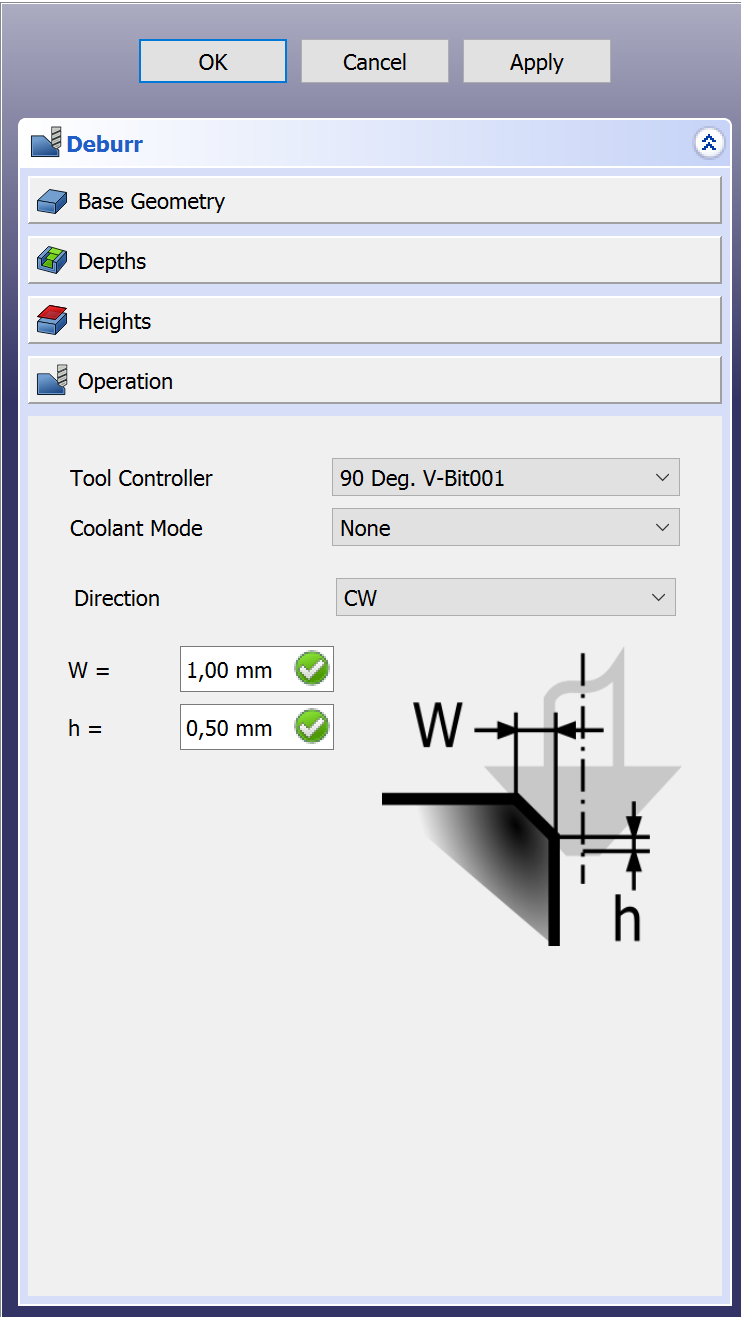
The Final step is to activate the Operation section where you can specify the following:
-
Tool controller: Select the tool to use.
-
Coolant Mode: Select
None,FloodorMist. -
Directions: Select
CW(clockwise) orCCW(counter-clockwise). -
W: The dimension of your edge.
-
h: The offset from the bottom of the tool. It’s a safety feature because if the tip gets above the edge it won’t cut anymore.
::
Properties
Data
-
Placement:
-
Label: User name of the object (UTF-8)
-
Direction:
CCWorCW. -
Entry Point: Entry point of the operation, if set to 2 it will go in 2 corners from the default.
-
Extra depth: Extra depth (h in the task panel).
-
Join: How to join chamfer segments,
RoundorMiter. -
Side: Side of the operation,
OutsideorInside. -
Width: The width of the chamfer (W in the task panel).
-
Clearance Height: The height needed to clear clamps and obstructions (set by default to
OpStockZMax + SetupSheet.ClearanceHeightOffset). -
Safe Height: The height above which rapid motions are allowed. (set to
OpStockZMax + SetupSheet.SafeHeightOffset). -
Start Depth: Starting depth of of the tool, first cut depth in Z.
-
Step Down: Incremental step down of the tool.
-
Op Stock ZMax: The maximum Z value of the stock.
-
Op Stock ZMin: The minimum Z value of the stock.
-
Op Tool Diameter: The diameter of the tool.
-
Active: Make
false, to prevent operation from generating code. -
Base: The base geometry for this operation, edges or a face.
-
Comment: An optional comment for this operation.
-
Coolant Mode: Coolant mode for this operation.
-
Cycle Time: Estimated cycle time for this operation.
-
Tool Controller: The tool controller that will be used to calculate the path.
-
User Label: User assigned label.